

Monitoring script
Install the monitoring script on your website to analyze user behavior and identify invalid activity.
The Monitoring script is the core of Tapper's invalid traffic detection. It runs on every page of your website, analyzes visitor behavior in real time, and builds the invalid traffic lists your ad platforms use to exclude invalid traffic.
Installing via a tag manager? Your container must already be live on your website. Both Google Tag Manager and Tealium iQ walk you through that setup when you first create one.
Step 1: Obtain the script
In Tapper, open Setup > Website in the sidebar, then the Monitoring area and its Install script and consent tab. If your workspace has more than one protected entity, pick it first in the switcher under the workspace name. Copy the Monitoring script, then head to your tag manager (Google Tag Manager or Tealium iQ), or to your website's HTML if you are installing manually.
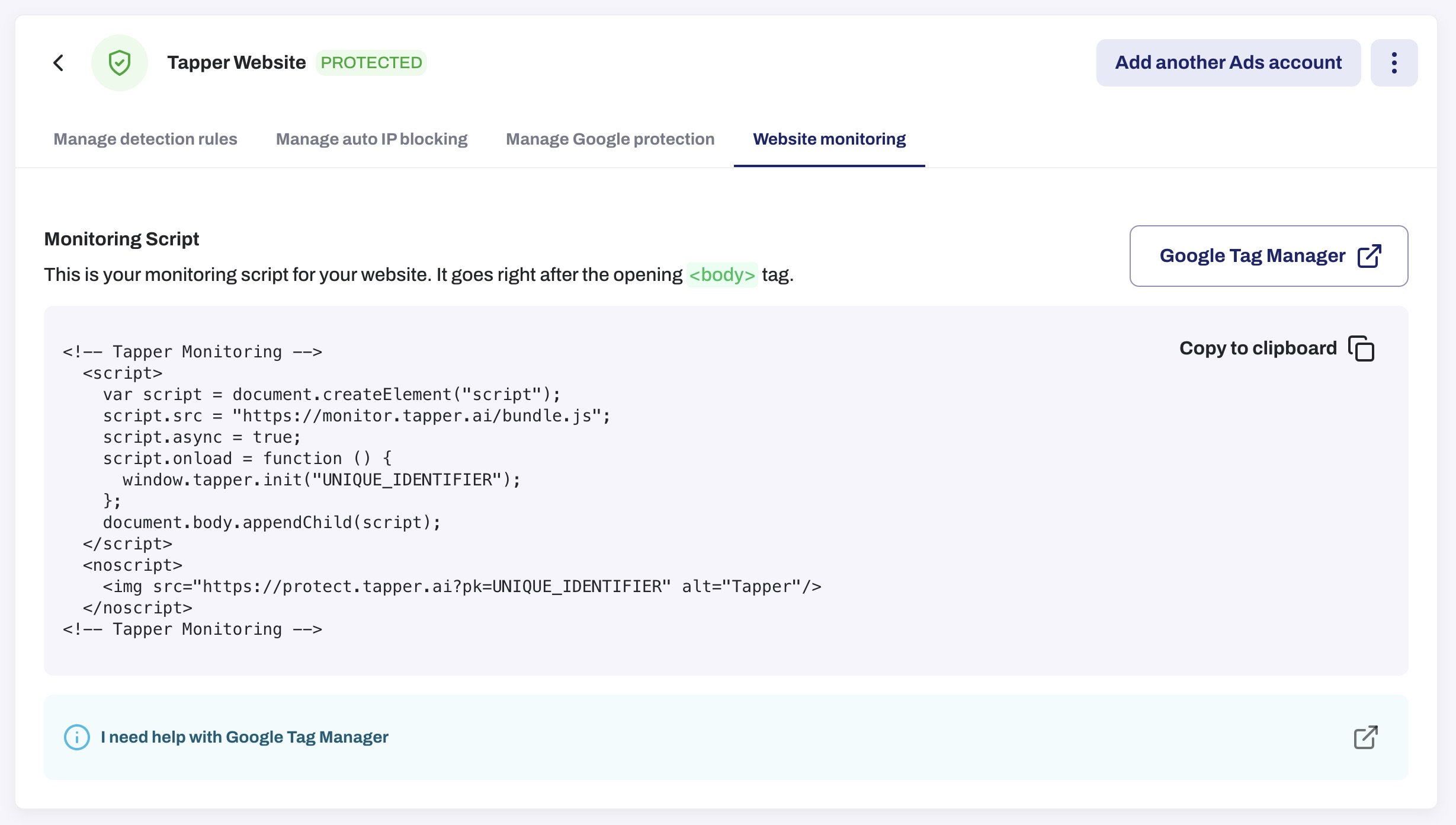
Copy the monitoring script from your Tapper dashboard
Step 2: Add the script
Create a new tag
Navigate to Tags in your GTM dashboard and click New.
Configure the tag
Select Custom HTML as the tag type and paste the copied monitoring script into the HTML field.
Set the trigger
Under Triggering, select the built-in trigger Initialization - All Pages so the script fires during the initial loading phase of every page.
Save the tag
Name your tag Tapper - Monitoring Script and click Save.
Publish
Click Submit, enter a version name and description, then click Publish.
Content security policy
If your website sends a Content-Security-Policy header, the browser refuses anything the policy does not name. The monitoring script then fails silently: nothing errors on your side and Tapper simply receives no traffic. Some platforms enforce a policy by default: Magento 2.4.7 and later enforces one on the checkout page (the rest of a Magento storefront is report-only unless you change it). Add the entries below before you install.
The list
This is the exact list Tapper measures and tests in a real browser. Each line is a directive, a source, whether you need it, and what it serves. The table under it explains each entry.
script-src   https://monitor.tapper.ai       REQUIRED     the SDK itself (bundle.js)
connect-src  https://protect.tapper.ai       REQUIRED     every tRPC call: ping, registerTab, pulse, contentRules, events, fingerprints, conversions
connect-src  https://fingerprint.tapper.ai   REQUIRED     JA4/JA4H network fingerprint probe (GET /fingerprint)
img-src      https://protect.tapper.ai       REQUIRED     /fp/summary session summary on every page hide, and the /e/beacon ad-blocker fallback for events
worker-src   blob:                           REQUIRED     worker-thread fingerprint (wfp: navigator + WebGL seen from a Worker)
connect-src  https://m1.openfpcdn.io         OPTIONAL     FingerprintJS vendor install statistics, about 1 page load in 1,000; no Tapper data
script-src   'unsafe-inline'                 CONDITIONAL  Tapper audiences: the ad-platform snippet served by users.pulse is injected as inline script
script-src https://www.googletagmanager.com CONDITIONAL Tapper audiences on Google Ads: the snippet's gtag.js loader| Entry | Needed | What breaks without it |
|---|---|---|
script-src https:// | Required | Nothing runs. No events, no fingerprints, no conversions. |
connect-src https:// | Required | Every call to Tapper is refused. The script loads and records nothing. |
connect-src https:// | Required | The network fingerprint is never sent, so a bot signal is lost on every visit. |
img-src https:// | Required | The summary sent when a page closes is refused, and so is the fallback that delivers events when an ad blocker stops the normal request. |
worker-src blob: | Required | Part of the browser fingerprint (the part read from a Worker) is missing, and your CSP report endpoint receives a violation each time. |
connect-src https:// | Optional | Nothing of Tapper's. An anonymous statistics request from a fingerprint library, about 1 page load in 1,000. We recommend you do not add it. |
script-src 'unsafe-inline' | Only with Tapper audiences | The audience snippet from your ad platform does not run, so visitors are not added to the audience. |
script-src https:// | Only with Google Ads audiences | The Google Ads snippet's gtag.js loader is refused, so visitors are not added to the audience. |
About 'unsafe-inline': it weakens your policy's protection against injected scripts, and browsers ignore it when script-src also has a nonce, a hash or 'strict-dynamic'. On such a policy audiences cannot run, even with the entry added.
The audience entries cover only what Tapper injects. The ad platform's own script then calls its own hosts; follow Google's and Meta's CSP guidance for those. A site that already runs their ad tags already allows them.
Where each entry goes
worker-src blob:: if your policy has noworker-srcbut haschild-src, addblob:tochild-src. If it has neither, addblob:toscript-src, or add aworker-srcdirective that also keeps the sources your own workers need. Note thatblob:inscript-srcalso letsblob:scripts run.script-srcentries: if your policy also setsscript-src-elem, add them there too.connect-srcandimg-src: if the directive is missing, the browser usesdefault-src, so add the host there, or add the directive and repeat yourdefault-srcsources in it: a new directive stopsdefault-srcfrom applying, and your own requests would break.- Nonce policies with
'strict-dynamic'ignore host lists inscript-src. The script then loads only if whatever inserts it is trusted, for example GTM loaded with your nonce. - Trusted Types (
require-trusted-types-for 'script') is not supported.
Inline code and Google Tag Manager
The list assumes no inline code of Tapper's runs on your page. The monitoring script you copy from the dashboard is an inline <script> block, and so is a GTM Custom HTML tag. Under a policy without 'unsafe-inline' in script-src, the browser refuses that block and the monitoring script is never even requested, whichever hosts you added. Pick one:
- Recommended: your own script file. Save the body of the snippet from the dashboard (the code between
<script>and</script>) as a file on your own site, for example/js/tapper.js, and load it with<script src="/. Your policy already allows your own origin (js/ tapper.js"></ script> 'self'), so nothing to add beyond the list. - Nonce (manual HTML install only). Add your per-response
nonceto the snippet's<script>tag. A GTM Custom HTML tag cannot carry a per-response nonce. - Hash. Add the block's
'sha256-...'hash toscript-src. The hash differs for every protected entity and changes if the block is edited at all.
The GTM Community Template is not a route under a strict policy for now: the version the gallery currently serves does not start the monitor. Use your own script file until this page says otherwise.
The Tealium install is not affected: its extension code runs inside utag.js, not as an inline block.
Allowing https://www.googletagmanager.com lets the GTM container load. It does not allow the scripts GTM then injects: each of those still needs its own host in the policy (here https://monitor.tapper.ai), and inline Custom HTML tags need one of the options above.
Example header
Content-Security-Policy: script-src 'self' https://monitor.tapper.ai; connect-src 'self' https://protect.tapper.ai https://fingerprint.tapper.ai; img-src 'self' https://protect.tapper.ai; worker-src 'self' blob:Merge these sources into your existing directives; do not replace your policy with this line.
Magento
With Magento_Csp, add a etc/csp_whitelist.xml to one of your modules:
<?xml version="1.0"?>
<csp_whitelist xmlns:xsi="http://www.w3.org/2001/XMLSchema-instance"
               xsi:noNamespaceSchemaLocation="urn:magento:module:Magento_Csp:etc/csp_whitelist.xsd">
    <policies>
        <policy id="script-src">
            <values>
                <value id="tapper-monitor" type="host">https://monitor.tapper.ai</value>
            </values>
        </policy>
        <policy id="connect-src">
            <values>
                <value id="tapper-protect" type="host">https://protect.tapper.ai</value>
                <value id="tapper-fingerprint" type="host">https://fingerprint.tapper.ai</value>
            </values>
        </policy>
        <policy id="img-src">
            <values>
                <value id="tapper-protect-img" type="host">https://protect.tapper.ai</value>
            </values>
        </policy>
    </policies>
</csp_whitelist>
Then run bin/magento cache:flush.
- Worker entry: do not add a
worker-srcpolicy. Magento sets noworker-src, and its defaultchild-srcalready allowsblob:, so the worker passes. Aworker-srcpolicy would block your store's own workers. If your store removedblob:fromchild-src, restore the blob scheme undercsp/in your config.policies/ storefront/ children/ schemes - Inline dashboard snippet: where the policy is enforced, allow the snippet by its hash inside the
script-srcpolicy, or use one of the other options above:
<value id="tapper-snippet" type="hash" algorithm="sha256">BASE64_HASH_OF_THE_SNIPPET_BODY</value>- Audiences:
csp_whitelist.xmlaccepts only hosts and hashes, so it cannot add'unsafe-inline'. Magento 2.4.7 and later also turns off inline scripts on the checkout page on purpose, so Tapper audiences cannot run there.
Step 3: Verify
Use GTM's Preview mode to confirm the tag fires correctly across your website.