

Connect Google Analytics
Connect your Google Analytics 4 property to Tapper to view CPA trends and surface zero-engagement paid sessions alongside your invalid traffic data.
Connecting Google Analytics 4 gives Tapper access to your campaign cost and conversion data, enabling CPA reporting on your dashboard. Optionally, linking your BigQuery export unlocks session-level corroboration of invalid traffic, showing which paid clicks had zero engagement, no scrolls, and no clicks in GA4.
Prerequisites
- A Google Analytics 4 property with data flowing in
- A Google account that has at least Viewer access to the GA4 property
- (Optional - for BigQuery) A Google Cloud Project with the GA4 BigQuery export already enabled
Step 1: Connect Google Analytics in Tapper
Open the connect step
In Tapper, open Setup > Advanced in the sidebar and the Google Analytics tab.
Click Connect Google Analytics
Click the Connect Google Analytics button. A Google authorization popup will open.

Click Connect Google Analytics to open the authorization popup
Choose your Google account
Select the Google account that has access to your GA4 property.
Grant permissions
Review the permissions Tapper requests and click Allow. Tapper requests read-only access to your Google Analytics data.
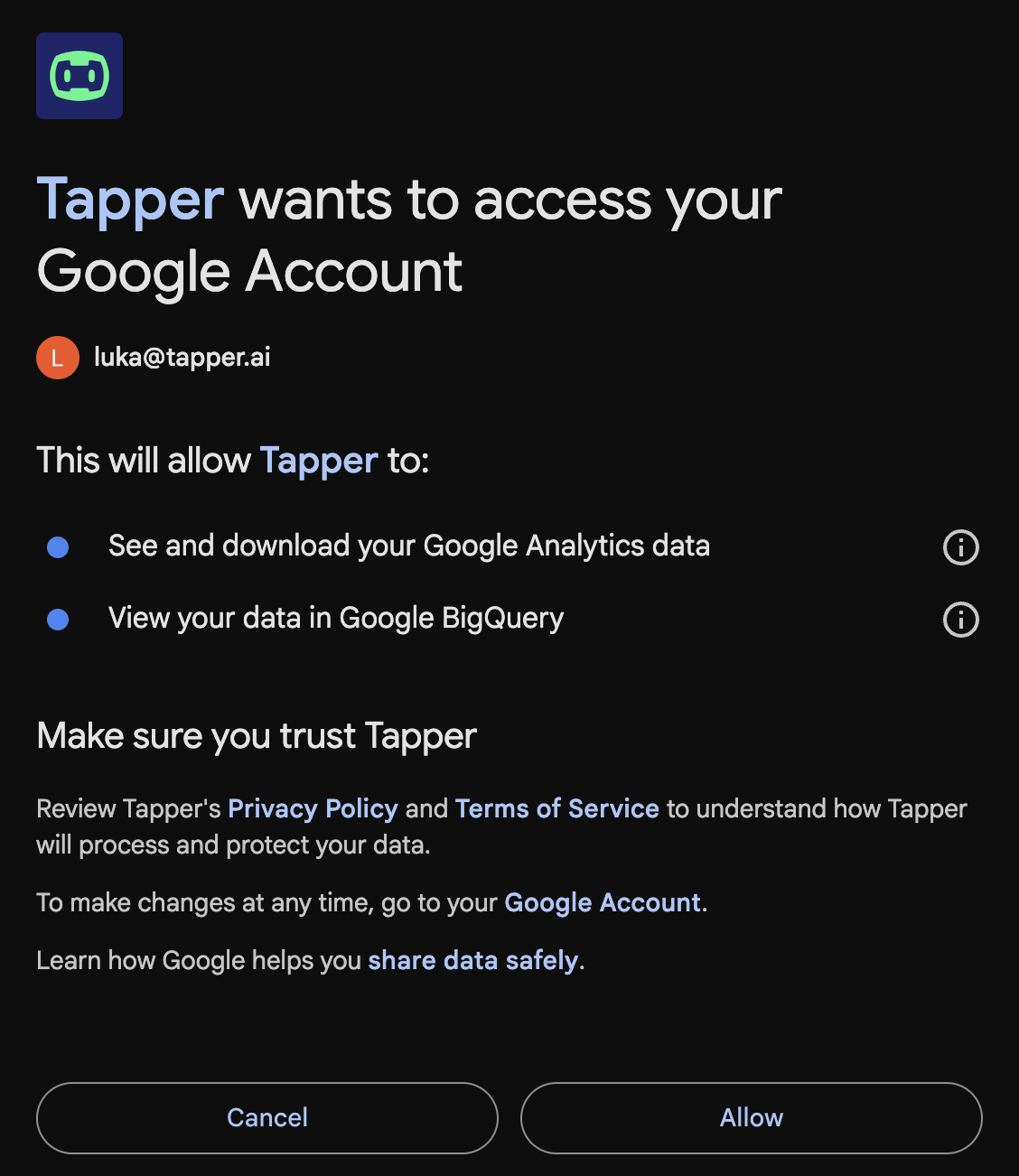
Grant Tapper read-only access to Google Analytics
The popup will close automatically once authorization is complete and you will be taken to the Google Analytics tab.
Step 2: Find and enter your GA4 property ID
Tapper needs your GA4 Property ID to query your data.
Open Google Analytics admin
In Google Analytics, click the Admin gear icon in the bottom-left corner.
Go to Property Settings
Under the Property column, click Property Details.
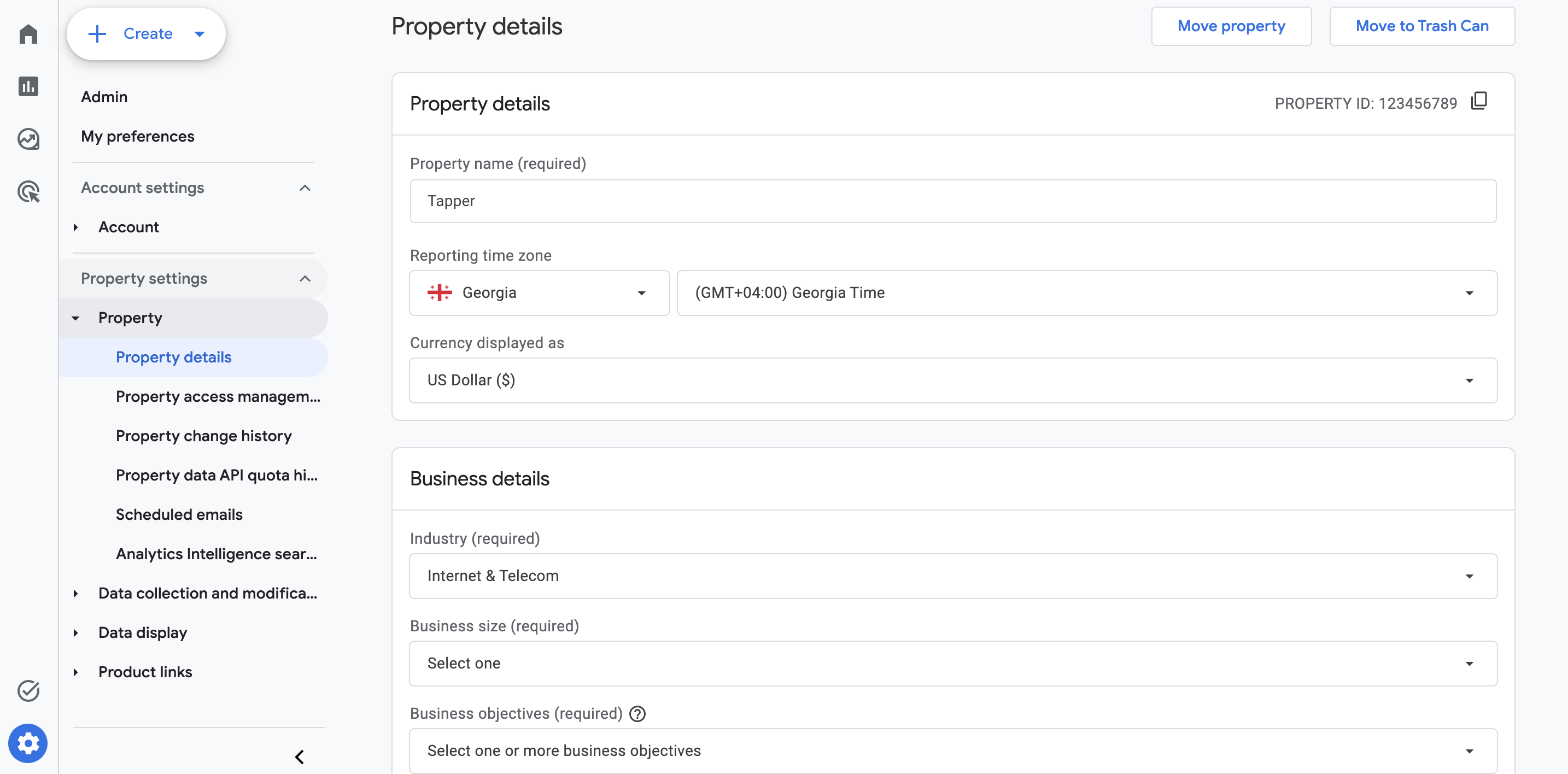
Property Settings in Google Analytics Admin
Copy the property ID
Your Property ID is the numeric value shown at the top of the page (e.g. 123456789). Copy it.
Paste the property ID in Tapper
In the Tapper Google Analytics tab, paste the Property ID into the GA4 Property ID field and click Save.

Enter your GA4 Property ID in Tapper
The CPA chart will now appear on your main dashboard, showing cost per acquisition over time.
Step 3: Enable BigQuery invalid traffic signals (optional)
Linking your GA4 BigQuery export gives Tapper access to session-level data. It surfaces paid sessions with zero engagement time, no scrolls, and no clicks. These are strong bot indicators that corroborate Tapper's own invalid traffic verdicts.
3a - Enable GA4 BigQuery export in Google Analytics
This step requires a Google Cloud Project. If you don't have one, create a free project at console.cloud.google.com.
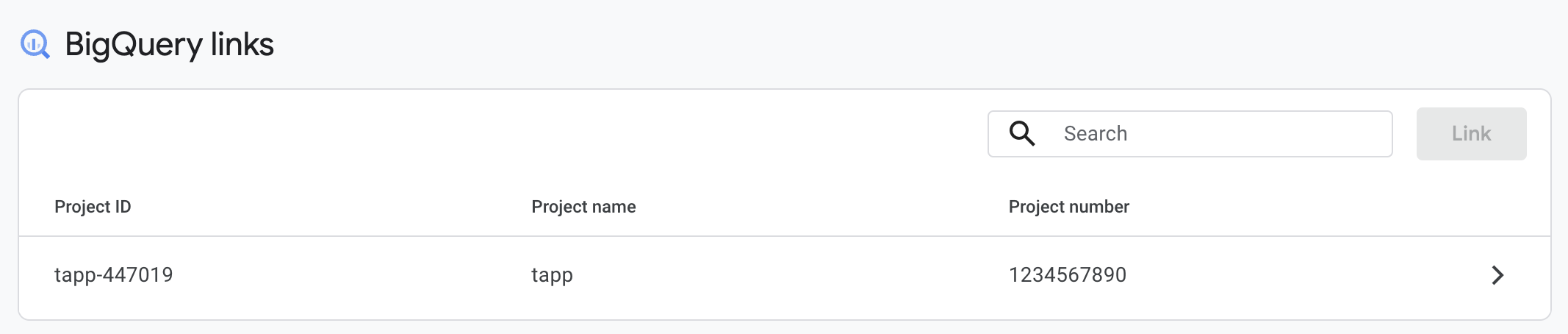
Open BigQuery links in GA4 admin
In Google Analytics Admin, scroll down to the Product links column and click BigQuery Links.
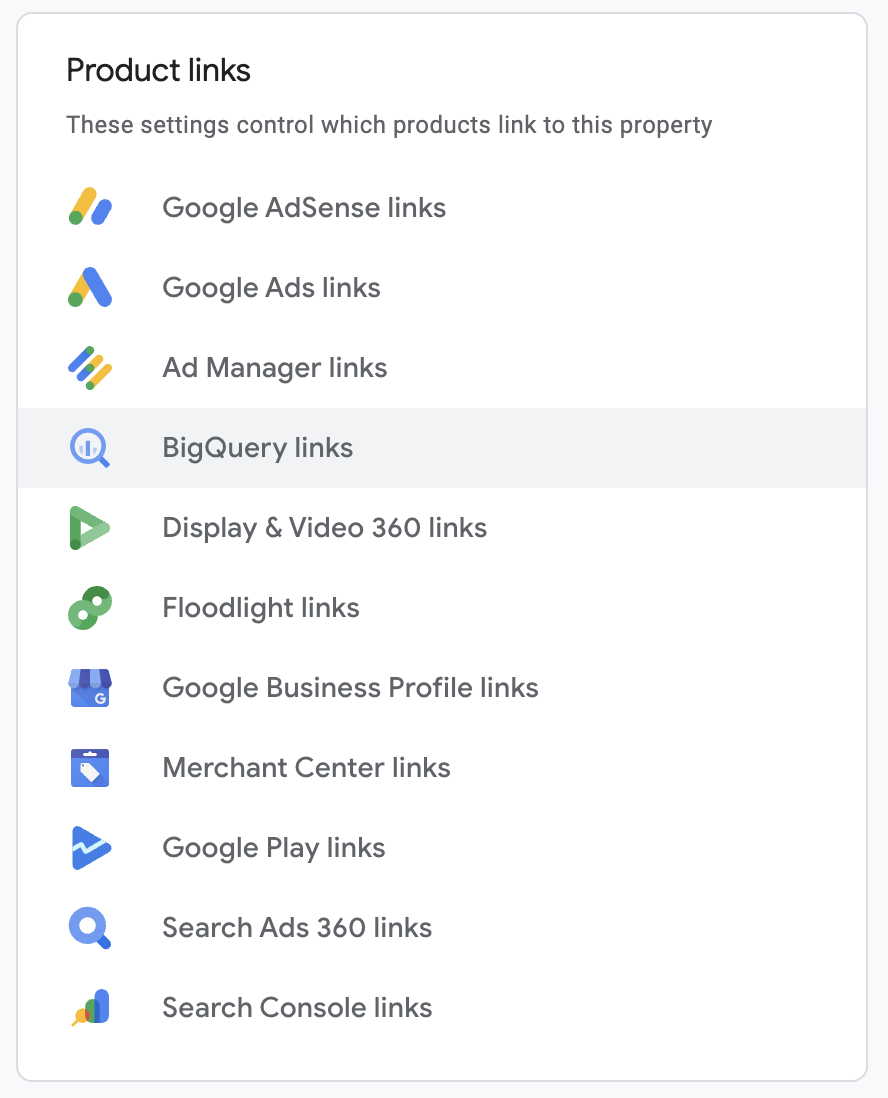
BigQuery Links in GA4 Property Admin
Create a new link
Click Link to create a new BigQuery connection.
Select your Google Cloud project
Click Choose a BigQuery project and select (or enter) the Google Cloud project where you want GA4 to export data.
Configure export settings
Choose your data location and enable Daily export. Streaming (intraday) export is optional - it reduces data latency from 24 hours to minutes but incurs additional BigQuery costs.
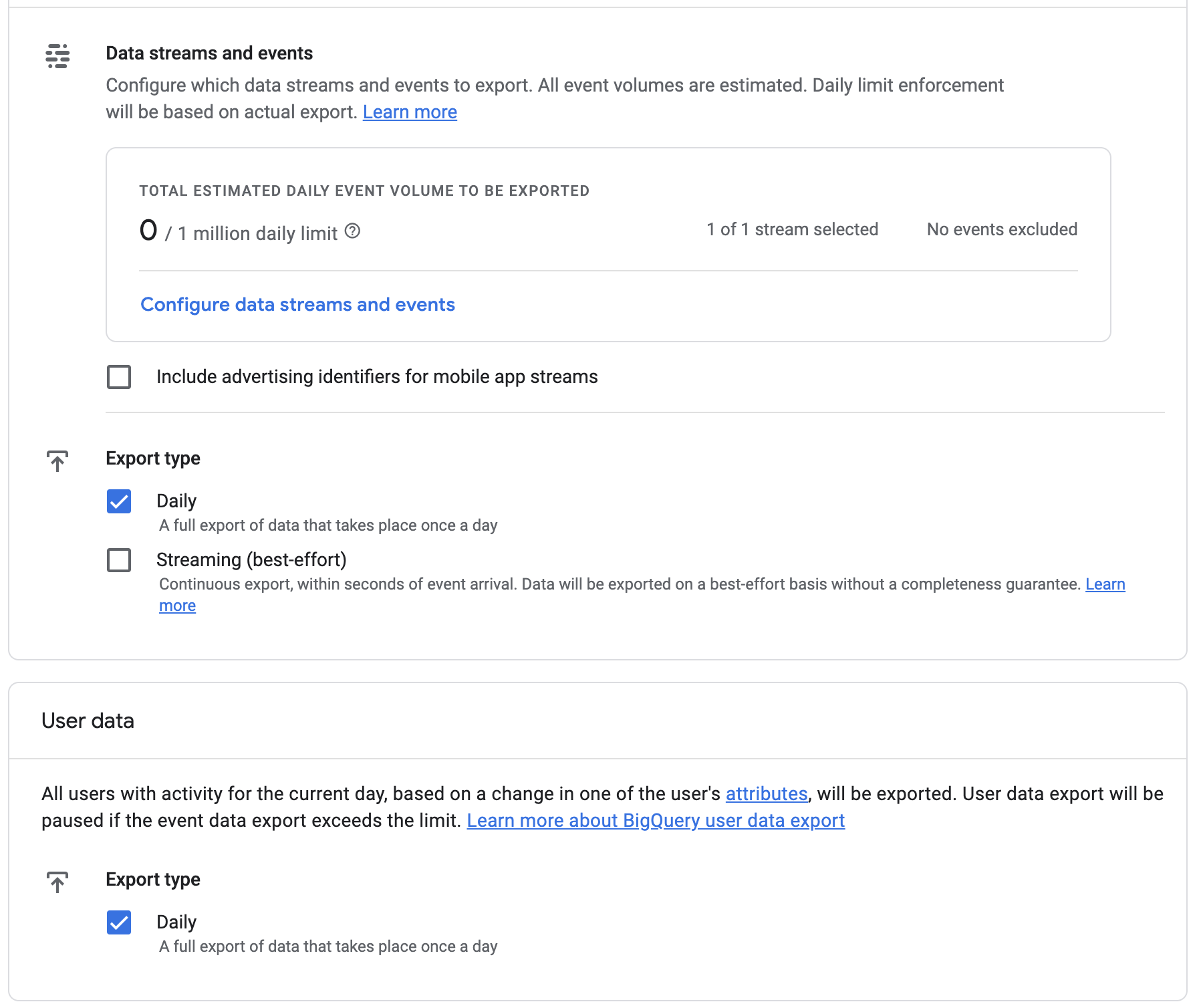
Configure export frequency and data location
Save the link
Review the summary and click Submit. GA4 will begin exporting raw event data to BigQuery within 24 hours. Tables will appear in your BigQuery project under a dataset named analytics_PROPERTY_ID.
GA4 BigQuery export creates tables in your Google Cloud project. Tapper queries them using your Google account credentials - your data never passes through Tapper's servers unencrypted.
3b - Enter your GCP project ID in Tapper
Find your GCP project ID
In the Google Cloud Console, your Project ID is shown in the project selector at the top of the page (e.g. my-company-prod). It is different from the project name.
Your Project ID is shown in the project selector - not the display name
Enter the project ID in Tapper
In the Tapper Google Analytics tab, enter your GCP project ID into the GCP Project ID field and click Save.

Enter your GCP Project ID in Tapper to enable BigQuery queries
The Zero-Engagement Paid Sessions table will now appear in the Google Analytics tab, showing paid clicks from the last 30 days that had no measurable engagement in GA4.
Troubleshooting
Make sure you have entered a valid GA4 Property ID and that your Google account has at least Viewer access to that property. The chart may take up to 24 hours to appear after initial connection as GA4 needs time to process data.
Check that:
- Your GA4 BigQuery export has been running for at least 24 hours - the first daily table takes time to populate
- The GCP project ID entered in Tapper matches exactly the project where the BigQuery export is configured
- Your GA4 property has paid traffic with
gclidparameters in the date range queried (last 30 days)
You need the BigQuery Data Viewer role (or higher) on the GCP project, and your Google account must have permission to view the GA4 BigQuery export dataset. Ask your GCP project owner to grant roles/bigquery.dataViewer on the analytics_PROPERTY_ID dataset.