

Tracking template
Set up and manage the tracking template at account level for your Google Ads account.
The tracking template is how Tapper captures click data from your Google Ads campaigns. It is configured automatically at account level when you connect your account - this page shows how to verify it, how to set up lower-level tracking when you need it, and how to fix the one setup that conflicts with Tapper.
Account-level setup
The tracking template is automatically set up when you connect your Google Ads account to Tapper. To verify:
Open Google Ads
Navigate to Tools and Settings in your Google Ads account.
Go to Account Settings
Select Account Settings → Tracking.
Verify the template
Confirm the Tapper tracking template is in place.
Adjusting lower-level tracking
If you need tracking templates or URL parameters set at the Campaign, Ad Group, or Ad level:
Copy the tracking template
In Tapper, open Setup > Ad accounts in the sidebar and the Google Ads tab, and copy the snippet under Tracking template.
Choose the level
In Google Ads, navigate to the specific Campaign, Ad Group, or Ad where adjustments are needed.
Open URL options
Open the URL options settings for your chosen level.
Paste the template
Paste the copied tracking template into the Tracking template input field.
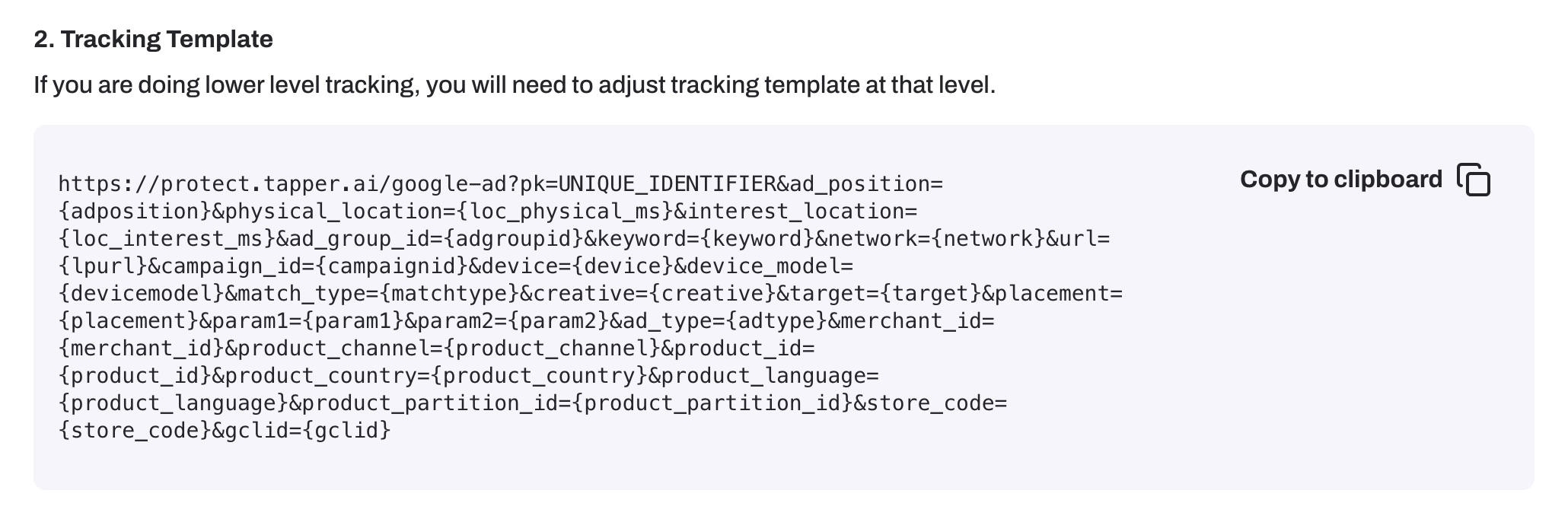
Copy the tracking template from Setup > Ad accounts > Google Ads
Fixing final URL suffix conflicts
If tracking is set at any level other than Account Level using a format like the example below, it will prevent Tapper from tracking clicks properly.
If your tracking template looks like this:
{lpurl}?utm_campaign={campaignid}&utm_term={keyword}&utm_content={adgroupid}&gclid={gclid}&device={device}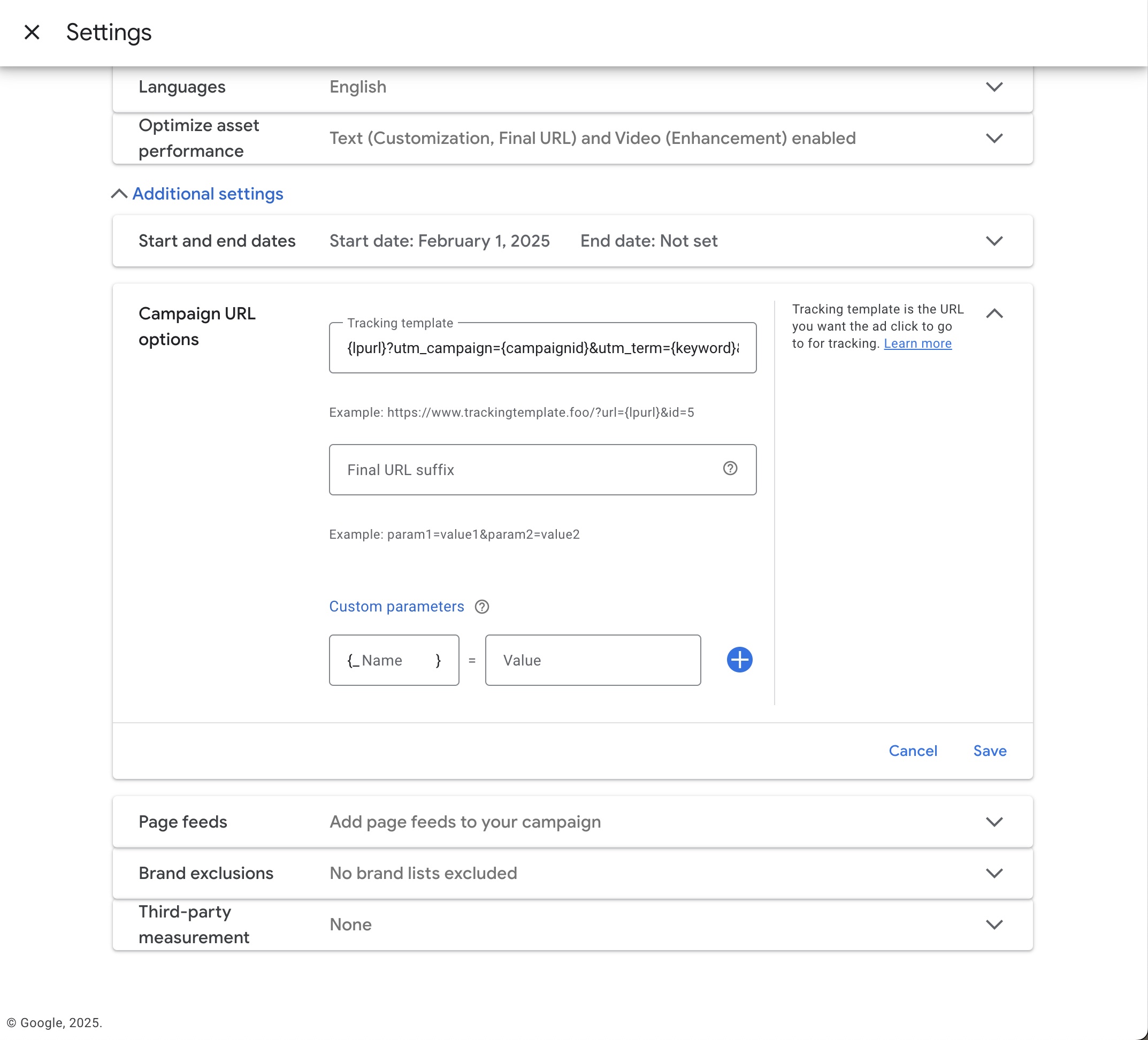
Tracking set via Tracking Template (will conflict with Tapper)
Move the parameters to Final URL Suffix instead, keeping only the portion after the ?:
utm_campaign={campaignid}&utm_term={keyword}&utm_content={adgroupid}&gclid={gclid}&device={device}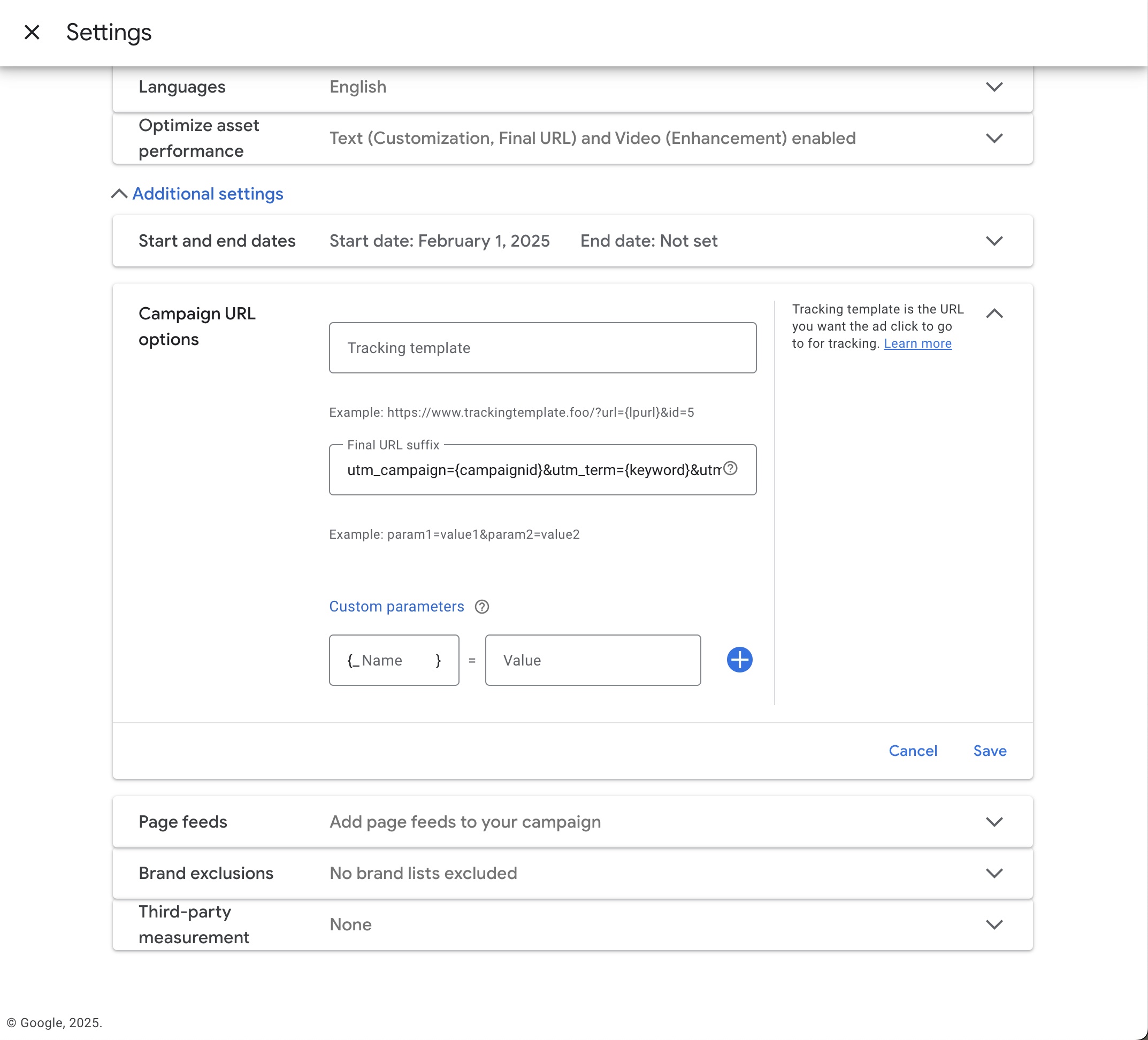
Correct setup: parameters moved to Final URL Suffix
How to update
Open Google Ads
Navigate to the Campaign, Ad Group, or Ad settings.
Expand Additional Settings
Open the Additional Settings section and click URL Options.
Move the parameters
Copy everything from the Tracking template field (without {lpurl} and ?), then paste it into the Final URL Suffix field.
Clear and save
Clear the old Tracking Template field and save.