

Conversion script
Install the conversion script to track user interactions and distinguish genuine engagements from invalid activity.
The Conversion script runs at the moment that matters most, the conversion. Put it on your confirmation page only: it reports a conversion every time it runs, so a copy on every page reports a conversion on every page view.
If your tag manager cannot fire a tag on the confirmation page alone, do not install this script. Use Conversion Pages instead: you list the pages that mean a conversion and Tapper counts them from the monitoring script you already have.
Step 1: Obtain the script
In Tapper, open Setup > Website in the sidebar, then the Monitoring area and its Install script and consent tab. If your workspace has more than one protected entity, pick it first in the switcher under the workspace name. Copy the Conversion script, then head to your tag manager (Google Tag Manager or Tealium iQ), or to your website's HTML if you are installing manually.
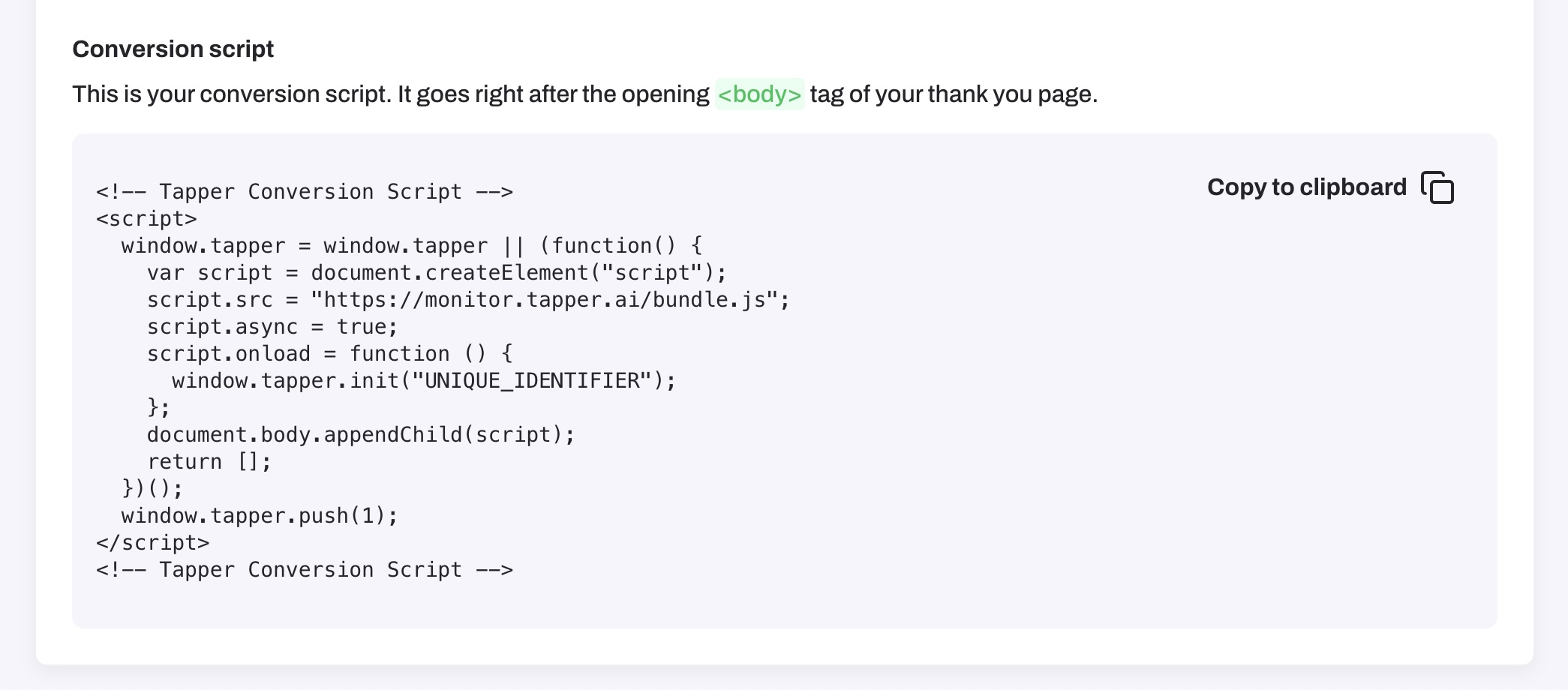
Copy the conversion script from your Tapper dashboard
Step 2: Add the script
Create a new tag
Go to Tags and click New to start a new tag.
Configure the tag
Choose Custom HTML as the tag type and paste the copied script into the HTML field.
Set conversion triggers
Select triggers that fire on the confirmation page only - for example the thank-you page view, or your form's success event. If the tag would fire on every page, use Conversion pages instead.
Save the tag
Name it Tapper - Conversion Script and click Save.
Publish
Click Submit, describe the changes, and click Publish.
Step 3: Send the conversion value
Sending the order value turns a conversion into a valued conversion - the signal Tapper Vantage uses to optimize your campaigns toward high-value customers, not just any conversion.
Pass the amount as a plain number (49.99), not a formatted
string. Use a 3-letter currency code (EUR). Multi-currency
stores must always send a currency.
Recommended - Tapper template
Create the order-total variable
Add a Data Layer Variable for your order total
(e.g. ecommerce.value), and - recommended - one each
for currency (ecommerce.currency) and transaction id
(ecommerce.transaction_id). Match your own data layer.
Use the Tapper template
Add a tag from the Tapper - Conversion Script template (GTM Community Template Gallery), or edit your existing one.
Map the fields
Set Order Value to your total variable
(e.g. {{DLV - ecommerce.value}}). Optionally set
Currency and Transaction ID to their variables.
Use each variable's name exactly as it appears in the Name column
of your Tag Manager Variables list, not the value in its
Data Layer Variable Name field.
Leave the trigger as your existing purchase event.
Publish
Click Submit, describe the changes, and Publish.
Alternative - Custom HTML tag
If you installed via the copied Custom HTML snippet, replace the hardcoded amount with your order-total variable:
var raw = {{DLV - ecommerce.value}};For currency and order id, use the Tapper template above.
In your browser's Network tab, confirm the conversion request
carries your value (and currency / order_id if set).
Step 4: Verify
Use GTM's Preview mode to confirm the tag fires correctly on conversion pages.