

Get started with Block
Set up Tapper Block step by step: connect an ad account, install the monitoring script, set your detection rules, then switch blocking on.
Lower CPA by removing fraudulent traffic, not only bots. Tapper Block screens every ad click on your website, and once blocking is on it keeps fraudulent visitors away from your ads. Block comes with Vantage + Block + Lift.
Block has its own section in the sidebar: Traffic, Exclusions, Experiments and Refunds. Exclusions reads Flagged traffic while your workspace is monitor-only. Tapper Block explains what Block does on each platform.
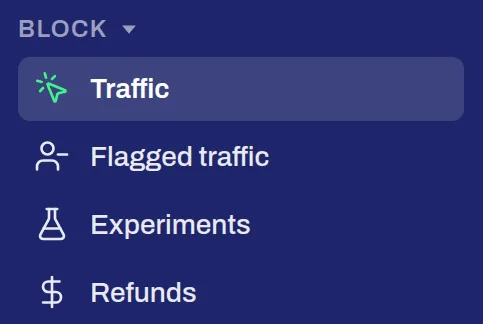
The Block section of the sidebar on a monitor-only workspace
Until an ad account is connected, Traffic reads Connect Google Ads to start protection. Connect each account once and every Tapper product on your workspace uses it; on a workspace with Block, connecting also sets up what Block needs in the account. See Connect your ad accounts.
The monitoring script watches each visit your ads bring to your website. See Install the monitoring script, and add the conversion script to tell genuine conversions from invalid ones.
Your detection rules decide what counts as invalid traffic. Set them per protected entity in Setup > Rule sets.
A new workspace starts monitor-only: Tapper records invalid traffic and excludes nothing. When the numbers look right to you, switch blocking on and Block starts keeping fraudulent visitors away from your ads.
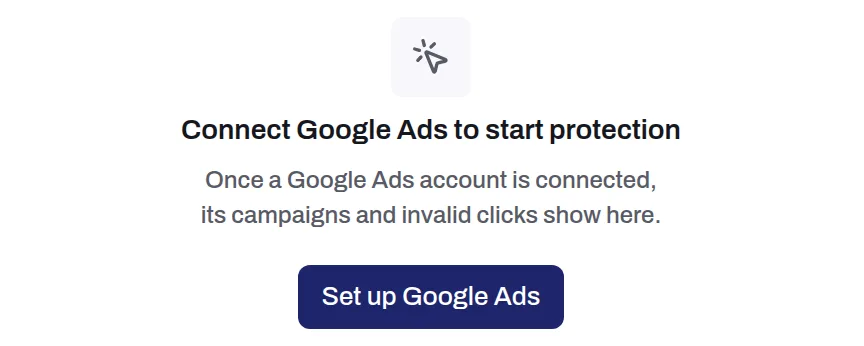
Traffic before an ad account is connected
Screen, part of Block
Screen keeps fake leads out of your CRM: it checks every form submission for bots, fake emails and junk entries. See Get started with Screen.