

Tracking template
How Tapper Block's tracking template works in Google Ads, when to add it to a campaign, ad group or ad, and how to fix templates that override it.
On a workspace with Tapper Block, your Google Ads clicks pass through Tapper's tracking template on their way to your landing page. That is how Block sees the click. Tapper sets the template at account level when you connect the account, or when Block is added to your workspace later, so you paste nothing. To connect an account, see Connect Google Ads.
The account-level template
When you connect an account, Tapper reads its account-level tracking template, keeps a copy, and replaces it with its own. If the account is later disconnected from Tapper, or Block is removed from your workspace, Tapper puts your previous template back, or clears its own when the account had none. A template that is no longer Tapper's is left as it is.
To check the template in Google Ads:
Open Google Ads
Open Tools and Settings in your Google Ads account.
Open the tracking settings
Select Account Settings, then Tracking.
Check the template
The tracking template starts with https://.
A template on a campaign, ad group or ad
A tracking template set on a campaign, ad group or ad overrides the account-level one, so the clicks on it skip Tapper. If you need tracking at one of those levels, put Tapper's template there.
Copy Tapper's template
In Tapper, open Setup > Ad accounts, then the Google Ads page and its Tracking template tab. Click the copy button (Copy the tracking template).
Choose the level
In Google Ads, open the campaign, ad group or ad that needs its own tracking.
Open URL options
Open the URL options settings for that level.
Paste the template
Paste the template into the Tracking template field and save. Do not edit it: the redirection_url={lpurl} part at the end sends the visitor on to your landing page.
The template carries the key of one protected entity. If one Google Ads account runs campaigns for more than one protected entity, pick each entity with the switcher under the workspace name, copy its template, and paste it on that entity's campaigns.
Fix templates that override Tapper's
A template like this one, set on a campaign, ad group or ad, stops Tapper from seeing the clicks on it:
{lpurl}?utm_campaign={campaignid}&utm_term={keyword}&utm_content={adgroupid}&gclid={gclid}&device={device}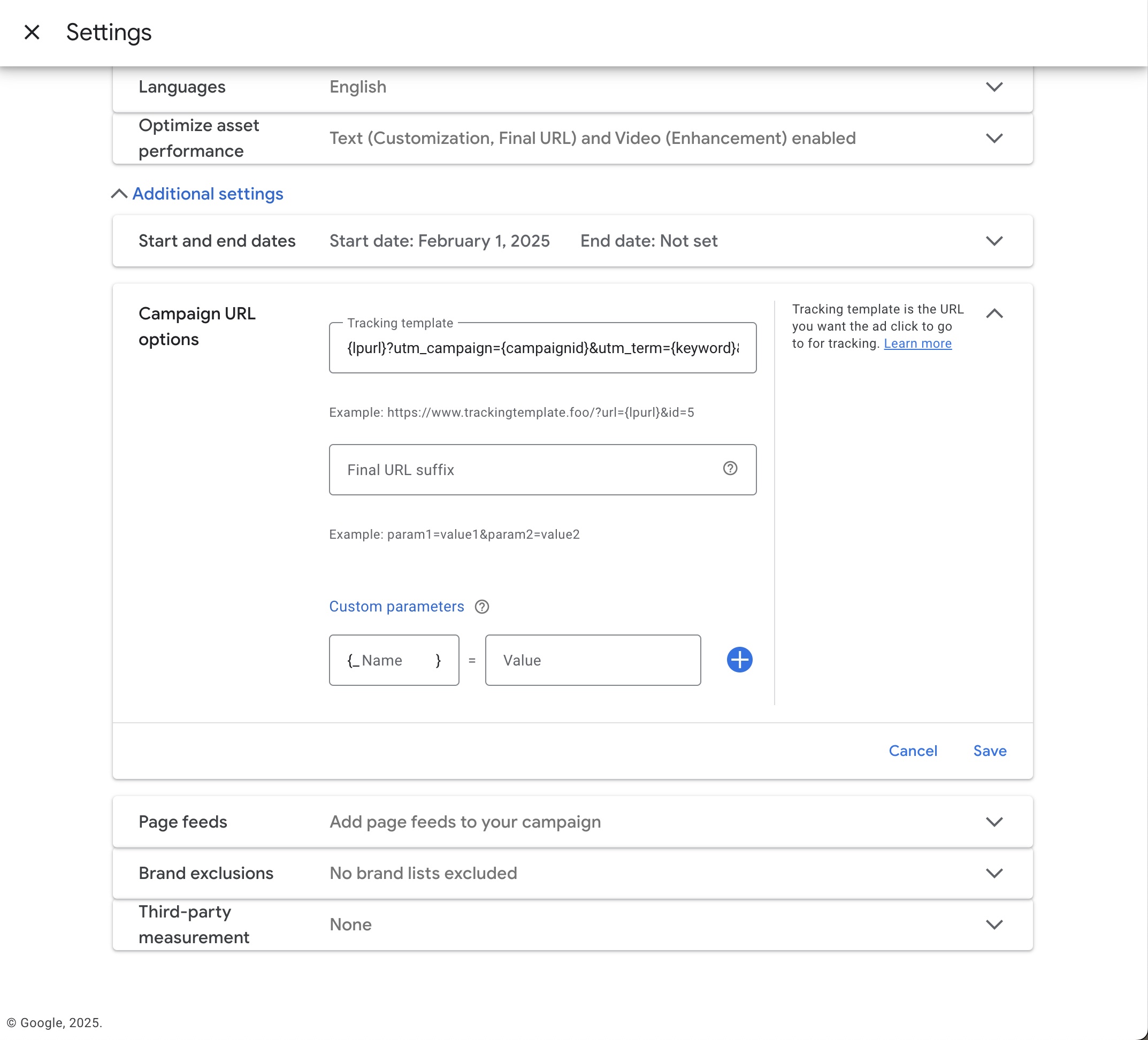
Parameters set in the tracking template override Tapper's.
Fix them from Tapper
Tapper finds these templates for you. You need the Owner, Admin or Manager role to fix them.
Open the fix
When Analytics > Dashboard shows Some ads skip Tapper's tracking, click Fix tracking. The Fix ad-level tracking dialog lists the campaigns, ad groups and ads with their own template, by account.
Fix one or all
Click the wrench button on a row (Fix tracking template) to fix that item, or click Fix all. For a template like the one above, Tapper moves the parameters to the final URL suffix and clears the template, so the account-level template applies again. For other templates, Tapper puts its own template in front and passes the click on to yours.
Check what is left
A template Tapper cannot rewrite without breaking it, such as one that sends the click through another tracker, stays in the list, with the reason. When the row shows a corrected template, click Copy template and paste it yourself. For an account managed in Search Ads 360, paste it in Search Ads 360, because its next sync reverts a change made in Google Ads.
Fix them by hand
Move the parameters to the Final URL Suffix, keeping only the part after the ?:
utm_campaign={campaignid}&utm_term={keyword}&utm_content={adgroupid}&gclid={gclid}&device={device}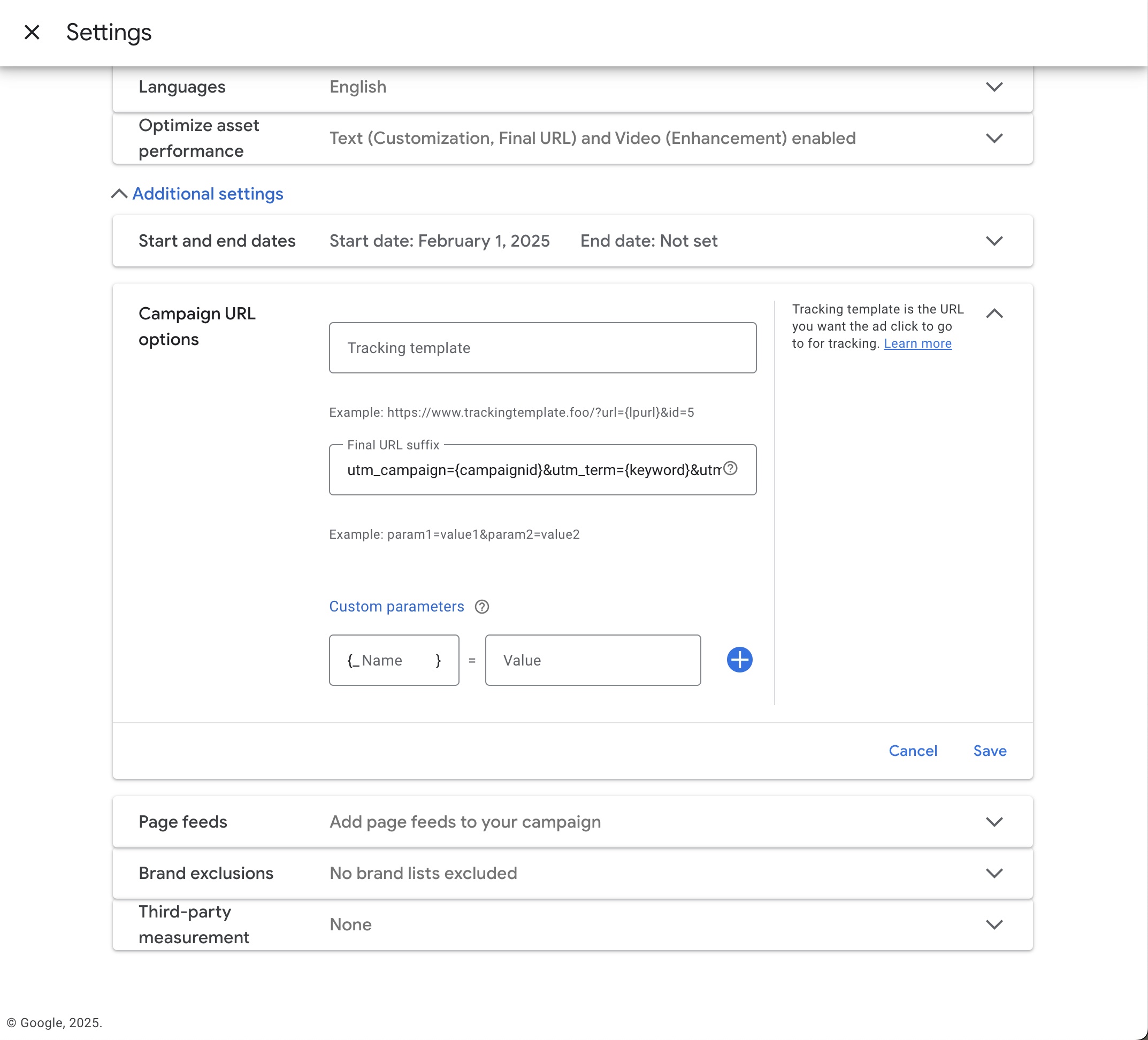
The same parameters in the Final URL Suffix.
Open the settings
In Google Ads, open the settings of the campaign, ad group or ad.
Open URL options
Open Additional Settings and click URL Options.
Move the parameters
Copy everything in the Tracking template field after {lpurl}? and paste it into the Final URL Suffix field.
Clear and save
Clear the Tracking template field and save.