

Audience exclusion
How Tapper Block keeps flagged visitors out of your Google Ads campaigns with its lists, and how to add the exclusion to a Video campaign by hand.
On a workspace with Tapper Block, Tapper keeps the visitors it flags in two lists in your Google Ads account and excludes those lists from your protected campaigns, so your ads stop showing to those visitors. Tapper creates the lists when you connect the account, or when Block is added to your workspace later. See Connect Google Ads.
The lists
| Name in Google Ads | Who is in it |
|---|---|
Tapper - Invalid Traffic List | Visitors Tapper flags as invalid traffic. |
Tapper - Ad Click Limit Exceeded Traffic List | Visitors who clicked your ads more often than a click limit allows. |
When the account's conversions are tracked in a manager account, the lists are in that manager account, with the account's ID at the end of each name. Some older accounts show the first list as Tapper - Invalid Traffic.
To choose how long a visitor stays in a list, open Setup > Ad accounts, then the Google Ads page and its Invalid traffic audience tab, and set Keep each visitor for, from 1 to 540 days. You need the Owner, Admin or Manager role to change it.
Where Tapper adds the exclusion
Tapper adds the exclusion itself on these campaign types:
| Campaign type | What Tapper excludes |
|---|---|
| Search, Display, Shopping and Performance Max | Both lists, on the campaign. |
| Demand Gen | The audience Tapper - Invalid and Ad Click Limit Exceeded Traffic Audience, built on both lists, on each ad group. |
On the Campaigns tab of the Google Ads page in Setup > Ad accounts, these campaigns have a Protection switch. Turning it off removes Tapper's exclusion from the campaign in Google Ads, and turning it on adds it again. You need the Owner, Admin or Manager role to change it. A campaign's row shows Audience Exclusion once the exclusion is in place, and a Demand Gen ad group shows Audience Segment Exclusion on the Ad groups tab.
For other campaign types, such as Video, add the exclusion by hand.
Add the exclusion by hand
Set up the campaign first: goals, budget, targeting and ads.
Open audiences
In Google Ads, open the Audiences tab of your campaign.
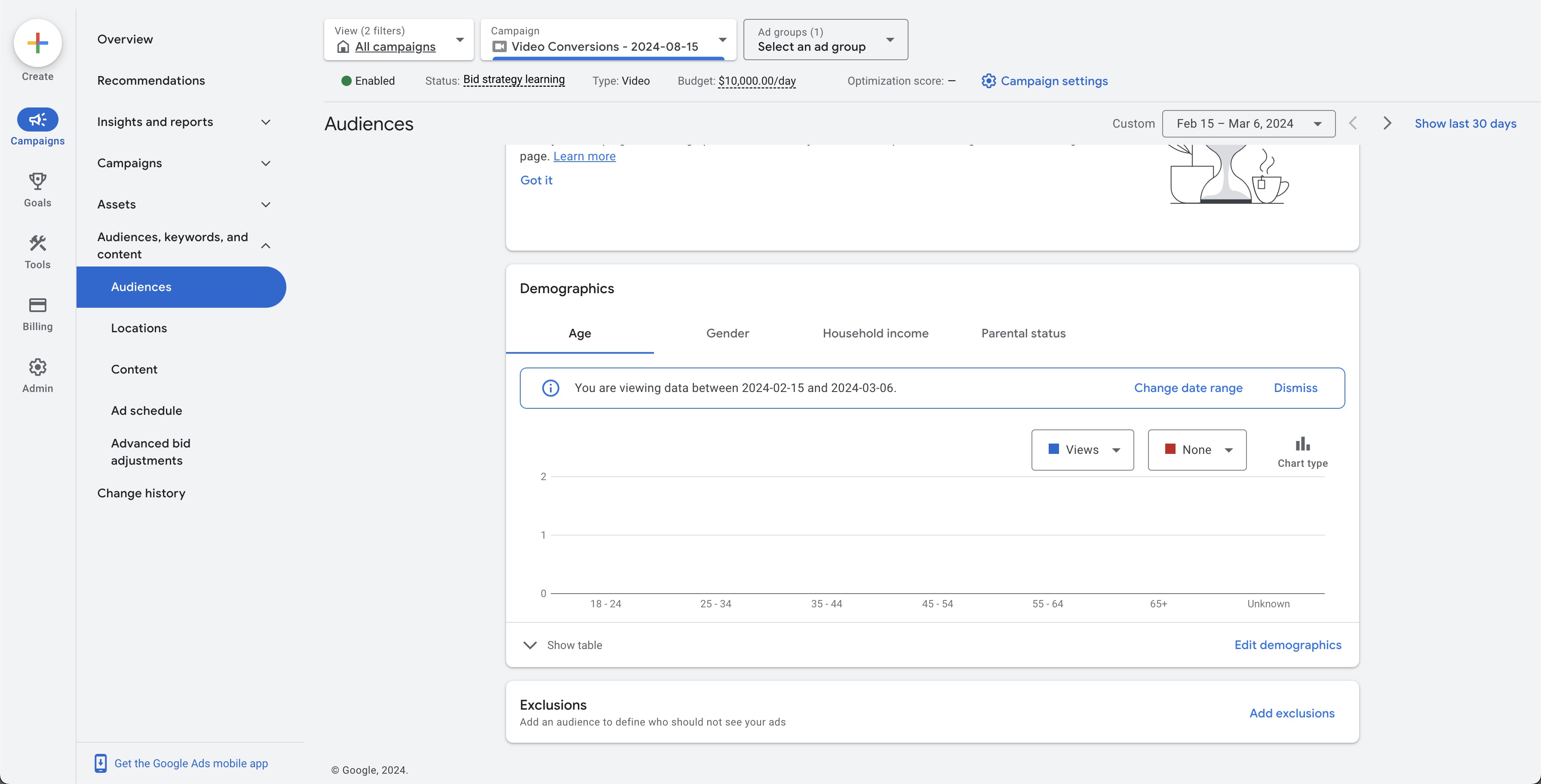
Add an exclusion
In the Exclusions section, click Add Exclusions and select the ad group to exclude the list from.
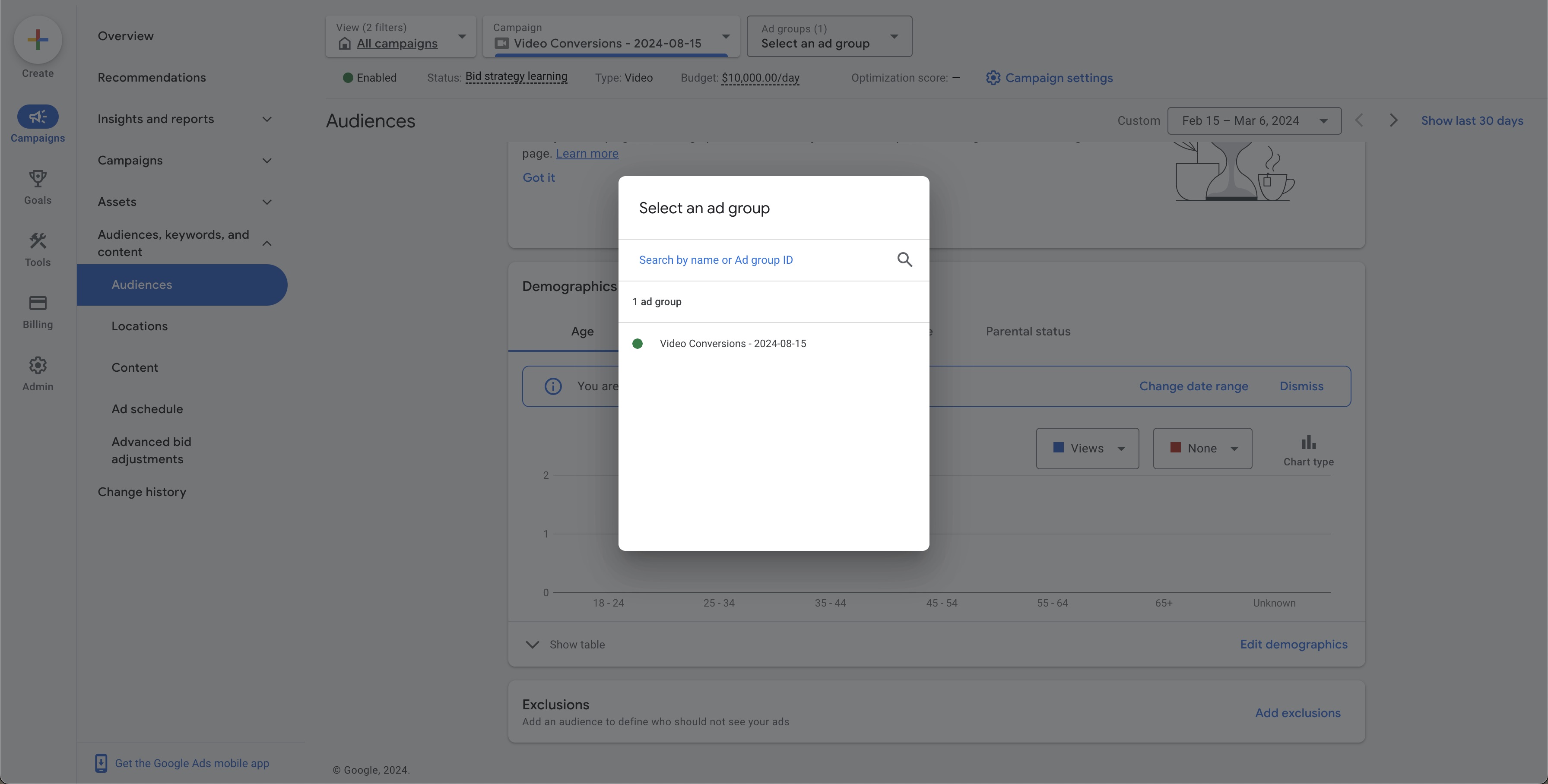
Pick the Tapper list
Search for Tapper - Invalid Traffic List, select it and click Save. To exclude the same visitors as Tapper's own exclusion, also select Tapper - Ad Click Limit Exceeded Traffic List.

If the ad group already has an audience
Edit the audience
Find the audience attached to the ad group and select Edit.
Add the exclusion
Scroll to the Exclusions section, search for Tapper - Invalid Traffic List and select it.
Save
Save the changes.
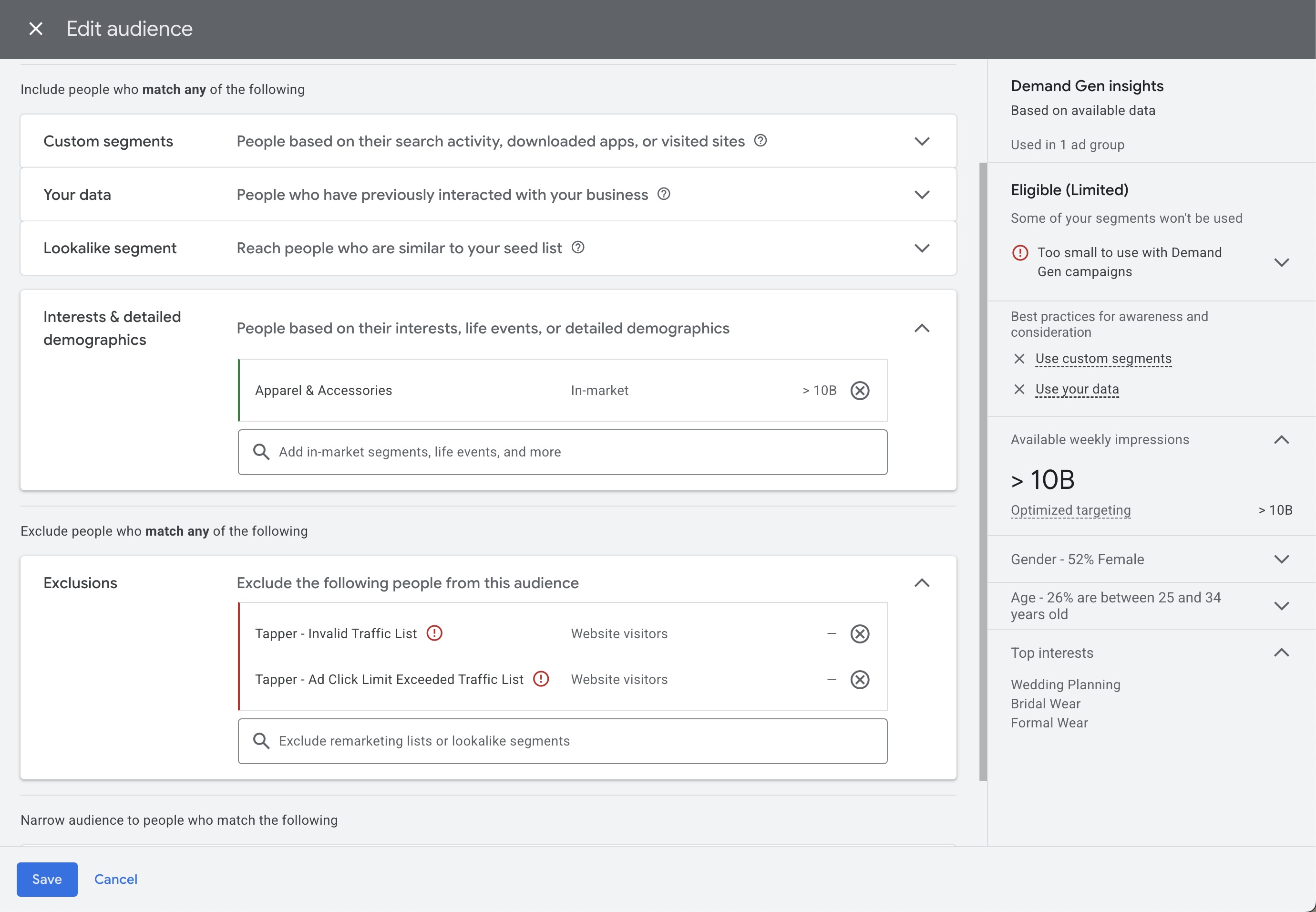
To add the exclusion to a whole campaign instead of one ad group, see Audience segment exclusion.