

Connect Google Analytics
Connect your Google Analytics 4 property once, for the Google Analytics dashboard tab and exclusion proof in Tapper Block and for a tracking check in Tapper Lift.
Google Analytics 4 is a shared connection. You connect it once for a protected entity, and every Tapper product on the workspace reads the same connection.
- Tapper Block adds a Google Analytics tab to the dashboard, with your property's traffic, engagement, key events and revenue next to your Google Ads cost.
- Block also checks each excluded Google Ads click against GA4, once you link your GA4 BigQuery export. The exclusion shows whether that click's session had zero engagement time, or no scrolls and no clicks.
- Tapper Lift uses GA4 in a Google Ads tracking check. Where no store is connected, Lift compares the purchases Google Ads counts on each campaign with the purchases GA4 records on that campaign's Google Ads sessions.
Tapper's access is read-only.
Prerequisites
- A Google Analytics 4 property with data flowing in.
- A Google account that can read that property.
- The Owner or Admin role in your Tapper workspace, to connect.
- For the exclusion proof: a Google Cloud project that receives your GA4 BigQuery export.
Step 1: Connect Google Analytics in Tapper
Open the Google Analytics tab
In Tapper, open Setup > Advanced in the sidebar. Google Analytics is the first tab. If your workspace has more than one protected entity, pick the one you want first in the switcher under the workspace name.
The same connection is also under Lift > Business details > Measurement > Google Analytics. Connecting in either place makes the same connection.
Click Continue with Google
The tab reads Google Analytics is not connected. Click Continue with Google. Google's sign-in page opens in the same tab.
Choose your Google account
Select the Google account that can read your GA4 property.
Grant permissions
Review the permissions Tapper requests and allow them. Tapper requests your email address and read-only access to your Google Analytics data and to BigQuery.
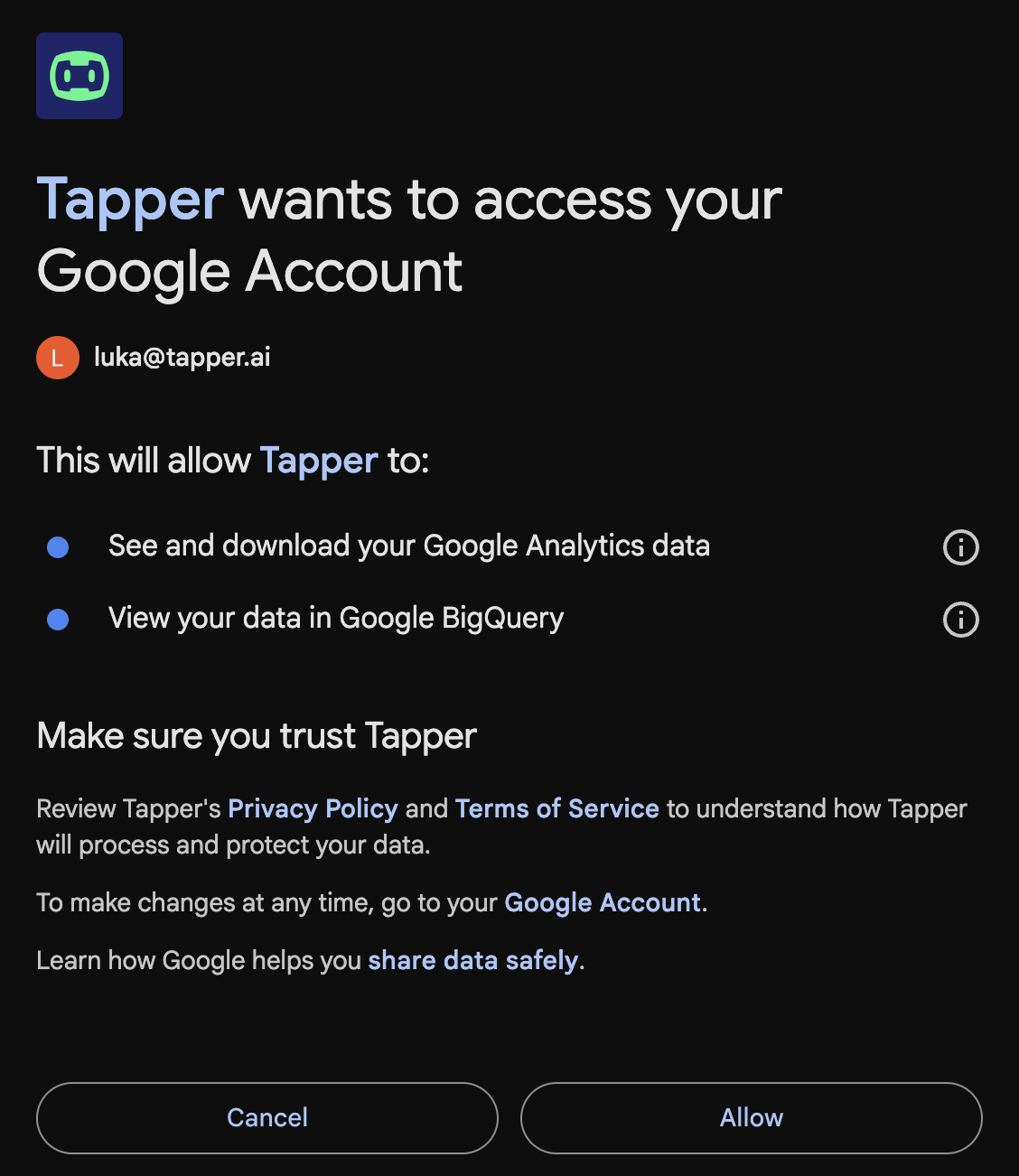
Grant Tapper read-only access
When you finish, Google sends you back to Tapper, which confirms that Google Analytics is connected.
To switch to a different Google account later, click Continue with Google again on the same tab and sign in with the other account.
Step 2: Add your GA4 property ID
Tapper needs your GA4 property ID to read your data.
Open Google Analytics admin
In Google Analytics, click the Admin gear icon in the bottom-left corner.
Go to Property details
Under the Property column, click Property details.
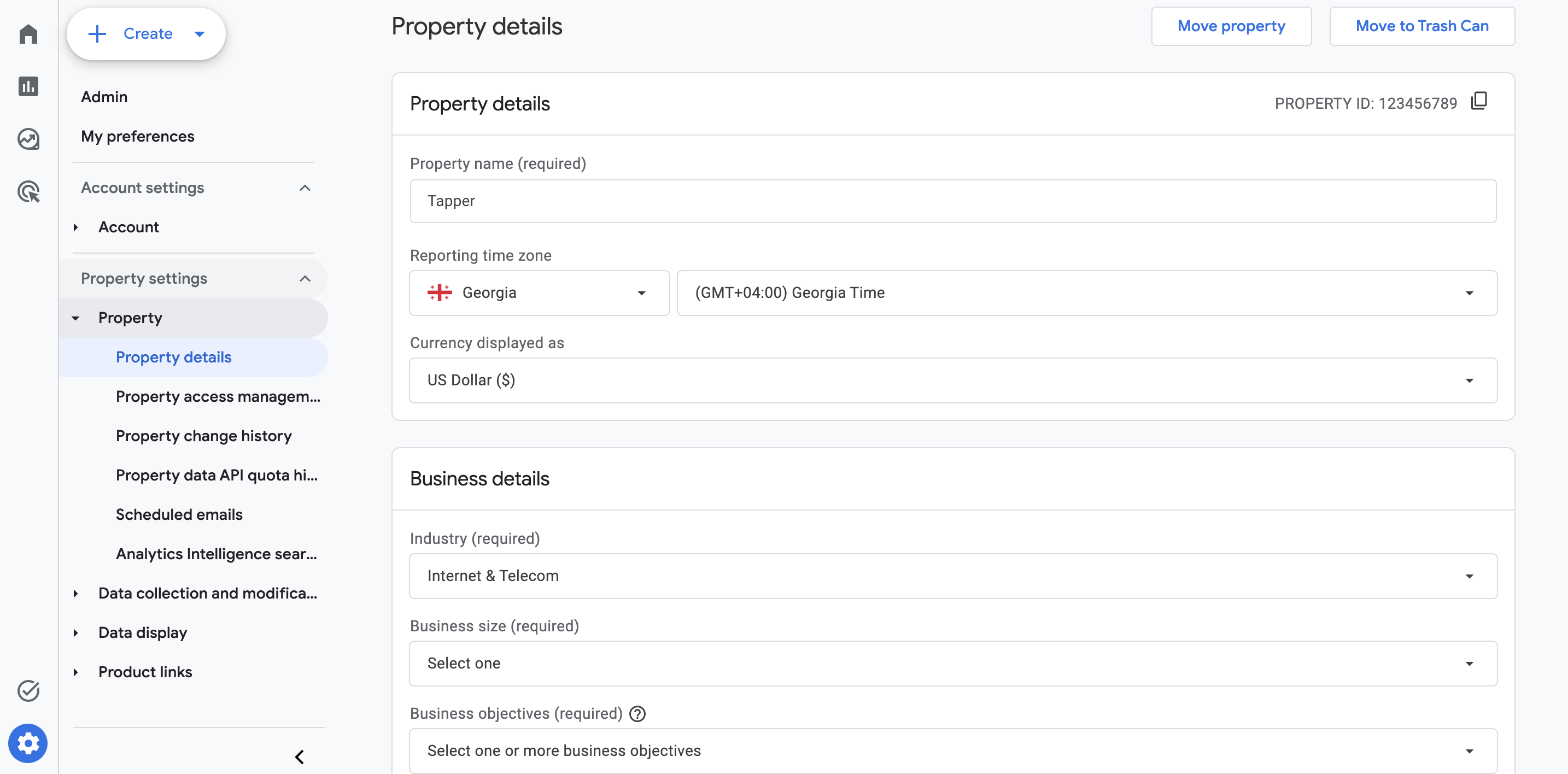
Property details in Google Analytics Admin
Copy the property ID
Your property ID is the numeric value at the top of the page, for example 123456789. Copy it.
Paste the property ID in Tapper
On the Google Analytics tab in Tapper, under GA4 properties, click Add property. Paste the ID into the GA4 property ID field. Add an optional Label, which is the name the dashboard's property selector shows. Then click Save properties.
Tapper checks that your Google account can read each new property before it saves it. A property ID is 6 to 12 digits.
You can add up to 25 properties, one per site. The dashboard shows each property on its own, never added together. Removing a property removes its synced data from your dashboard; the other properties keep their history.
If a property measures none of the websites your protected entity covers, Tapper still saves it and warns you: Google Analytics property 123456789 measures none of the websites this protected entity covers. If you see this warning, check that you entered the right property.
On Lift > Business details > Measurement > Google Analytics, the properties are saved with the page's Save bar.
In a workspace with Tapper Block, open Analytics > Dashboard and select the Google Analytics tab. Its charts fill in once Tapper's Google Analytics sync has run. Tapper syncs once a day, so the first data can take up to a day to appear. The tab shows how far the data runs, as Latest data through and the date.
What the Google Analytics tab shows
The Google Analytics tab sits on the Dashboard in a workspace with Tapper Block. It appears once a protected entity in the workspace has Google Analytics connected. It has four sections.
| Section | What it covers |
|---|---|
| Google Ads performance | Ad cost, cost per key event, clicks, impressions and return on ad spend, by day and by campaign. |
| Engagement | Engagement rate, bounce rate, session duration and pages per session, by channel and by device. |
| Traffic & acquisition | Sessions, users, sources and mediums, devices, countries, landing pages, and traffic by day and hour. |
| Key events & revenue | Key events, the session key event rate, revenue and purchases. |
The Google Ads cards need your GA4 property linked to Google Ads. Until it is, they read Requires a Google Ads link in GA4. Dates follow your GA4 property's time zone.
Step 3: Link your BigQuery export for exclusion proof (optional)
Linking your GA4 BigQuery export gives Tapper session-level data. Block uses it to look for the session of each excluded Google Ads click and show its engagement. A paid session with zero engagement time, or with no scrolls and no clicks, supports Tapper's own invalid traffic verdict.
If the protected entity has more than one GA4 property, the proof reads the BigQuery export of the first property in its GA4 properties list.
Enable the GA4 BigQuery export in Google Analytics
This step needs a Google Cloud project. If you don't have one, create a project at console.cloud.google.com.
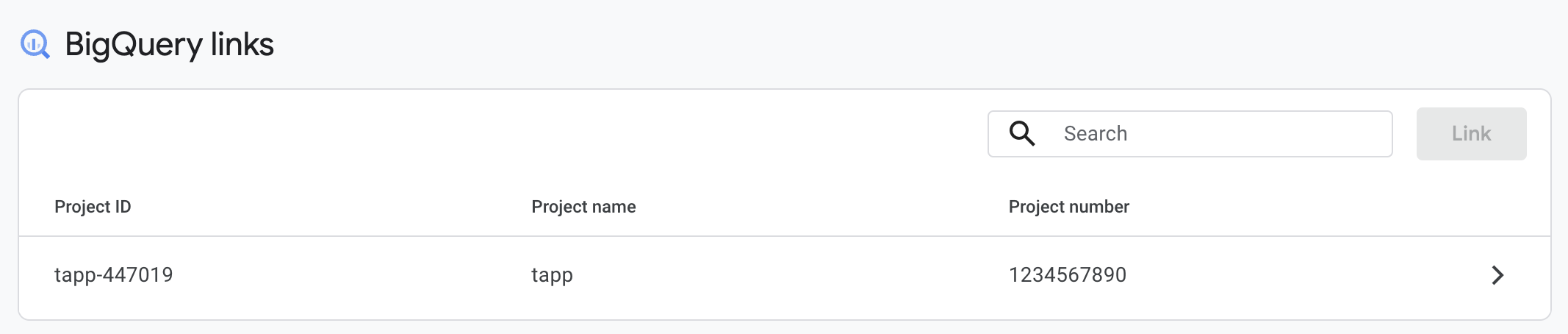
Open BigQuery links in GA4 admin
In Google Analytics Admin, scroll to the Product links column and click BigQuery links.
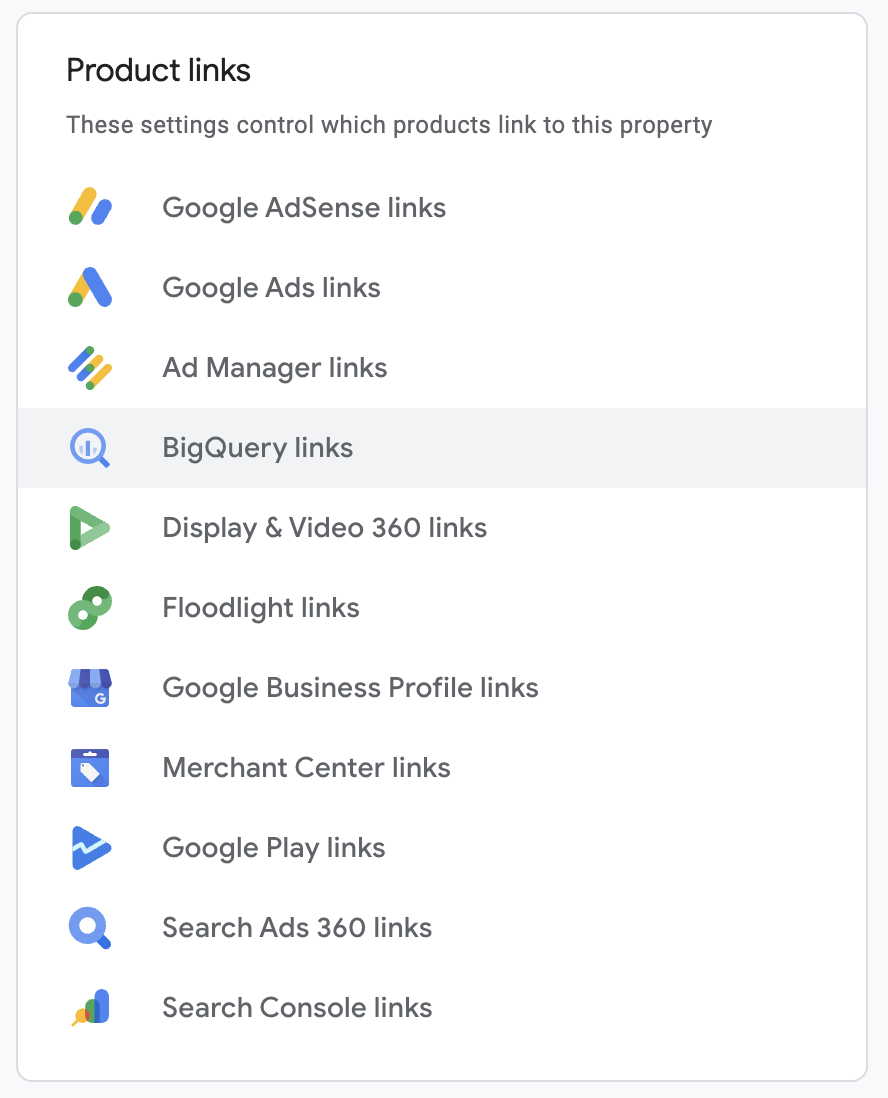
BigQuery links in GA4 property admin
Create a new link
Click Link to create a new BigQuery connection.
Select your Google Cloud project
Click Choose a BigQuery project and select the Google Cloud project where GA4 should export data.
Configure export settings
Choose your data location and turn on Daily export. Streaming export is optional and adds BigQuery costs.
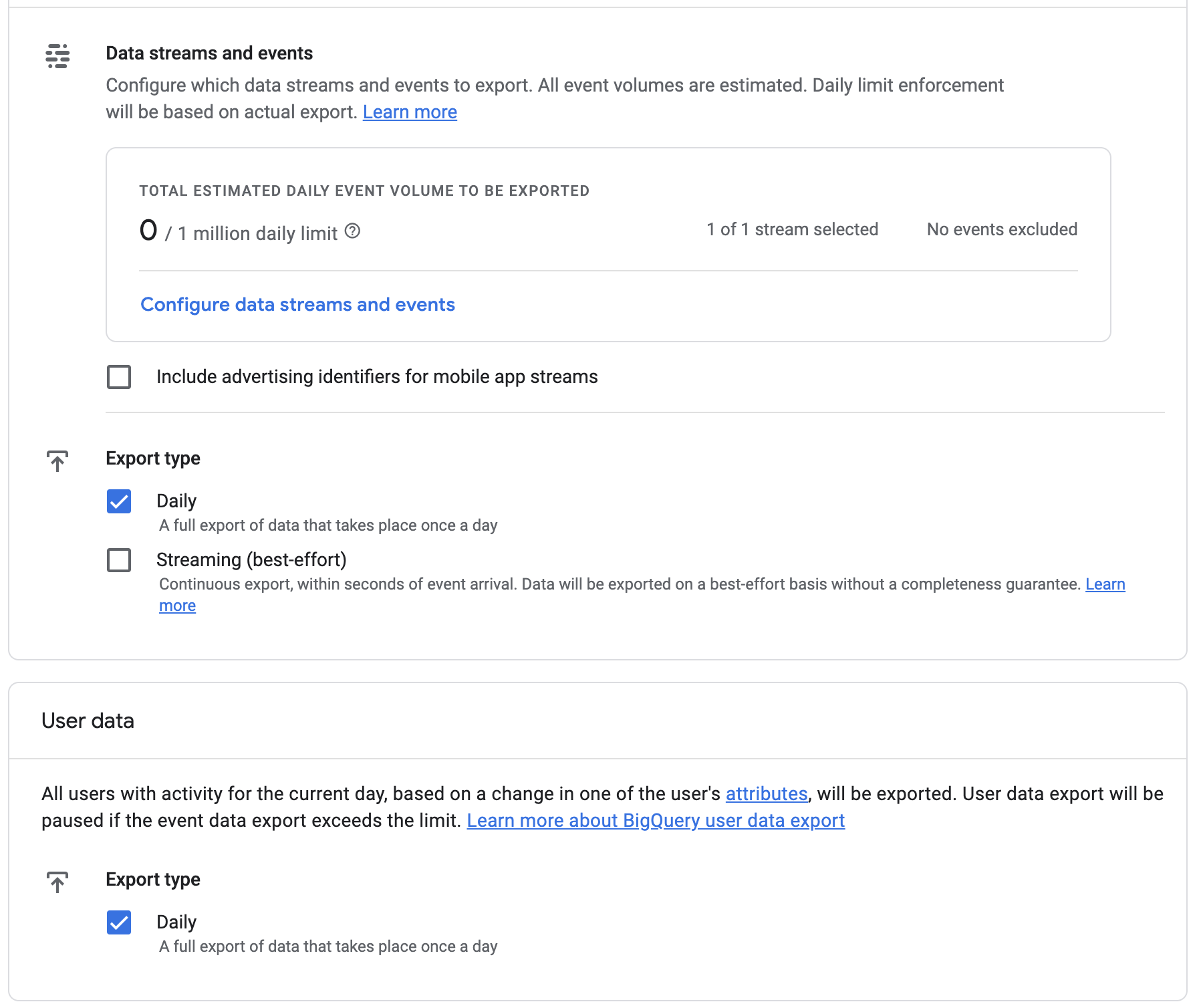
Configure export frequency and data location
Save the link
Review the summary and click Submit. GA4 exports raw event data to BigQuery, in a dataset named analytics_PROPERTY_ID in your project.
The export tables stay in your own Google Cloud project. Tapper reads them with the Google account you connected.
Enter your Google Cloud project ID in Tapper
Find your project ID
In the Google Cloud console, your project ID is shown in the project selector at the top of the page, for example my-company-prod. It is different from the project name.
Your project ID is shown in the project selector, not the display name
Enter the project ID in Tapper
On the Google Analytics tab in Tapper, under BigQuery export, enter the project ID in the GCP Project ID field and click Save.

Enter your GCP Project ID in Tapper
Open Block > Exclusions and select a Google Ads exclusion. When the visitor arrived with a click ID, its details include Google Analytics proof. When GA4 recorded a session for that click ID in the last 30 days with zero engagement time, or with no scrolls and no clicks, the proof shows its Engagement, Scrolls, Clicks, Country and Hostname. In a workspace that only monitors, the page is named Flagged traffic.
Troubleshooting
The tab appears in a workspace with Tapper Block, once a protected entity has Google Analytics connected. If the tab says the entity has no GA4 properties, click Add GA4 properties and add your property ID on Setup > Advanced > Google Analytics.
Check that you saved a valid GA4 property ID and that your Google account can read that property. Tapper syncs Google Analytics once a day, so the first data can take up to a day to appear. If the tab reads Reconnect Google Analytics, Google rejected the stored connection. Click Continue with Google and sign in again.
Tapper found no session for that click ID in the last 30 days with zero engagement time, or with no scrolls and no clicks. Also check these three things.
- Your GA4 BigQuery export has been running for at least a day, so the first daily table exists.
- The GCP Project ID in Tapper is exactly the project where the BigQuery export is set up.
- Your GA4 property receives paid traffic with
gclidparameters.
Tapper shows this when it cannot read the BigQuery export. Check that you entered a GCP Project ID: without one, there is no export to read. Tapper does not check BigQuery access when you save the project ID, so a permissions problem shows up here instead. Tapper runs the query in that project with the Google account you connected. That account needs the BigQuery Data Viewer role (roles/bigquery.dataViewer) or higher on the analytics_PROPERTY_ID dataset, and permission to run queries in the project, such as the BigQuery Job User role (roles/bigquery.jobUser). Ask your Google Cloud project owner to grant them, then click Retry. The proof is read for the Owner, Admin and Manager roles, so a Viewer sees this message too.