

Connect TikTok Ads
Connect your TikTok ad accounts to Tapper once, with a TikTok for Business sign-in, and see what the connection sets up for Tapper Block and Tapper Lift.
You connect each TikTok ad account to Tapper once. The connection serves both Tapper Block and Tapper Lift, and what it sets up in TikTok depends on whether your workspace has Block.
Before you start
- To connect or reconnect an account, you need to be the workspace owner or an Admin. Anyone else sees: Only a workspace owner or admin can connect an account. Ask one of them to connect it for you.
- Sign in with a TikTok for Business login that has access to the ad accounts you want to connect.
- On a workspace with Tapper Block, each ad account needs a TikTok Pixel, installed on your website. A workspace without Block needs no pixel.
Connect an account
Open the TikTok Ads page
In the sidebar, open Setup, then Ad accounts, and click TikTok Ads in the list of platforms. On a phone, pick TikTok Ads in the Platform menu. If your workspace has more than one protected entity, first pick the one the account belongs to with the switcher under the workspace name.
Click Add ad account
Click Add ad account. While no TikTok Ads account is connected, the Connect TikTok Ads button on the page does the same. The Add an account page opens, with the TikTok Ads row first.
Sign in to TikTok for Business
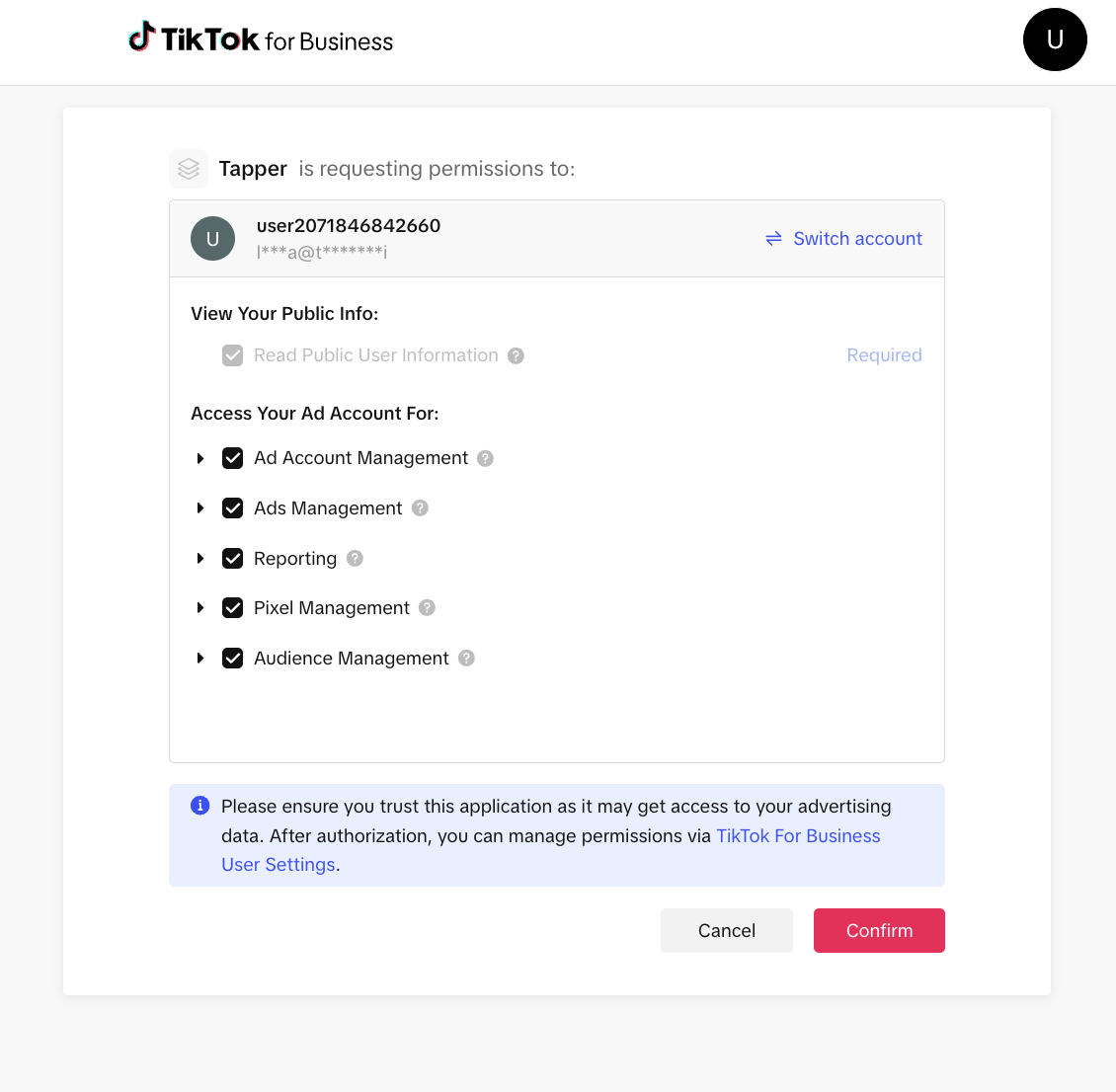
On the TikTok Ads row, click Continue with TikTok. A TikTok for Business window opens, or the sign-in runs in the same tab if your browser blocks pop-ups. Sign in and confirm the access Tapper asks for.
Tick the accounts
Back in Tapper, the page lists the TikTok ad accounts your sign-in can reach. Tick the ones to connect and click Finish. To find an account in a long list, type its name or ID in Search accounts by name or ID.
Click Done
When the page says the accounts are connected, click Done. The TikTok Ads page opens again and lists each account on its Accounts tab with the status Connected.
When you set up a new workspace, use its Connect an ad account step: it has the same TikTok Ads row, and the sidebar shows no Setup section until that setup is finished. With Block, the button under the account list is Continue, and the setup goes on to install website monitoring. Without Block, click Finish, then Done to open Lift.
On a workspace with Tapper Lift, the Lift page can also start the connection: while no TikTok account is connected, the TikTok tab above the recommendations is marked Connect and opens the same Add an account page.
What connecting changes in TikTok
Once an account is connected, Tapper reads its campaigns, ad groups and ads, and reads them again every 6 hours. The TikTok Ads page lists the ad groups on its Ad groups tab. The workspace owner, Admins and Managers can click Refresh there to read them at once.
Tapper does not import TopView or Promote campaigns and does not show their spend, because TikTok does not let their ad groups be changed through its API.
With Tapper Block
Block creates an audience named Tapper - Invalid Traffic Audience in each account you connect, using your TikTok Pixel. Leave it as it is, and do not add it to your ad groups as an exclusion. The audience that collects invalid visitors is one you create yourself in TikTok Ads Manager: see Invalid traffic audience.
Without Tapper Block
Connecting creates nothing in your TikTok ad account.
Tapper Lift
On a workspace with Lift, Lift uses the same connection, with no second sign-in. See Tapper Lift on TikTok Ads.
Accounts in other workspaces, and disconnecting
- An ad account that is connected in another Tapper workspace cannot be connected here. If you tick one, Tapper connects none of the accounts you ticked and says: This ad account is connected to another Tapper workspace. Contact Tapper support to move it. To connect the others, untick it and click Finish again.
- An account that is connected to another protected entity of your workspace moves to this one when you connect it here.
- Only Tapper can disconnect an ad account. Contact your Tapper team.
Reconnect an account
When TikTok signs Tapper out of an account, its row on the Accounts tab shows Needs reconnect. Click Reconnect on the row and sign in to TikTok for Business again, with a login that has access to the account. You come back to the TikTok Ads page.
Every account that needs it is ticked for you. The button above the list, Reconnect 2 selected when two are ticked, reconnects every ticked account in one sign-in. Untick any account that another TikTok login manages, and reconnect it on its own.
Until an account is reconnected, Tapper does not refresh its campaigns and ad groups, and Lift does not read it.
If an account does not connect
When some accounts connect and others do not, the page names each account that failed and why. Retry the failed accounts tries them again where that can help, and Done with the connected accounts keeps the ones that worked.
| What you see | What to do |
|---|---|
| An account you expected is not in the list. | Click Back, then Continue with TikTok, and sign in with a TikTok login that has access to the account. |
| No ad accounts found. | Click Connect a different account and sign in with another TikTok login. |
| Your TikTok sign-in has ended. Sign in with TikTok again. | Tapper keeps the sign-in for 30 minutes while you tick the accounts. Click Back, then Continue with TikTok, and tick the accounts again. |
| The account has no TikTok Pixel, on a workspace with Block. | Install the TikTok Pixel on your website, then connect the account again. |