Add the website tag
Updated 27 November 2026
The website tag is the core of Tapper's invalid traffic detection. It runs on every page of your website and records how each visitor behaves, and Tapper analyzes each visit as it arrives to build the invalid traffic lists your ad platforms use to exclude invalid traffic.
Installing through a tag manager? Your container must already be live on your website. Google Tag Manager and Tealium iQ both walk you through that setup when you first create one.
Step 1: Copy the script
In the sidebar, open Setup, then Website. If your workspace has more than one entity, first pick the one for this website in the entity switcher at the top of the sidebar. Monitoring shows the script once the entity has a Google Ads, Meta Ads, TikTok Ads or Microsoft Ads account connected. A workspace that uses Tapper Lift only has no Website row.
In the list of areas on the left, click Domains. Under Protected domains, click Add domain, type the domain, such as example.com, in Domain and click Add. Add every domain your ads land on, up to 25: the website tag counts visits only from these domains. With none, the card reads Add a domain to turn on protection. Under Websites sending your tag, the page lists other websites that loaded your tag, with their Refused visits and Saved visits. Add to my domains moves one into your list.
In the list of areas on the left, click Monitoring, then open the Install script and consent tab. Before an ad account is connected, Monitoring reads Connect an ad account to start monitoring.
The tab opens with the box that holds your website tag, the code that goes right after the opening <body> tag. Click the copy button in its code box. The Google Tag Manager button next to the heading opens Tag Manager. For a Tealium iQ or manual install, go to your tag manager or your website's HTML.
Step 2: Add the script
In your GTM workspace, open Tags and click New.
Select Custom HTML as the tag type and paste the copied website tag into the HTML field.
Under Triggering, select the built-in trigger Initialization - All Pages, so the script fires early on every page.
Give the tag a name you will recognize, for example Tapper website tag, and click Save.
Click Submit, enter a version name and description, then click Publish.
If you set this tag to Require additional consent for tag to fire, Tag Manager fires it only if every consent type you listed is granted when its trigger fires (Tag Manager consent mode support).
The Tapper conversion tag (the Custom HTML tag from the Conversion script section) hands its conversion to the website tag and does not load the tag itself, so it records nothing on a page where this tag did not fire. Fire both tags on your confirmation page.
The website tag already applies your cookie policy and your tapper.consent() call by itself, see Consent and cookies.
Content security policy
If your website sends a Content-Security-Policy header, the browser refuses anything the policy does not name. The website tag then fails silently: nothing errors on your side and Tapper receives no visits. Some platforms enforce a policy by default: Magento 2.4.7 and later enforces one on the checkout page (the rest of a Magento storefront is report-only unless you change it). Add the entries below before you install.
Tapper shows the required entries under the website tag, in a box headed Content Security Policy, with its own copy button.
The list
Each line is a directive, a source and whether you need it. The table under it says what each entry is for.
script-src   https://monitor.tapper.ai         REQUIRED
connect-src  https://protect.tapper.ai         REQUIRED
connect-src  https://fingerprint.tapper.ai     REQUIRED
img-src      https://protect.tapper.ai         REQUIRED
worker-src   blob:                             REQUIRED
script-src   'unsafe-inline'                   CONDITIONAL
script-src   https://www.googletagmanager.com  CONDITIONAL
img-src https://c.bing.com CONDITIONAL| Entry | Needed | What breaks without it |
|---|---|---|
script-src https:// | Required. | Nothing runs. No events and no conversions are recorded. |
connect-src https:// | Required. | Every call to Tapper is refused. The script loads and records nothing. |
connect-src https:// | Required. | Network fingerprinting is never sent, so protection is weaker on every visit. |
img-src https:// | Required. | Part of what the script sends is refused, so some visits and events go unrecorded. |
worker-src blob: | Required. | Part of browser fingerprinting (the part read from a Worker) is missing, and your CSP report endpoint receives a violation each time. |
img-src https://c.bing.com | Only when you protect Microsoft Ads with UET ID Sync on. | The Microsoft ID Sync pixel is refused, so Microsoft cannot tie your visitors to its own users for audiences. |
script-src 'unsafe-inline' | Only with Tapper audiences. | The audience snippet from your ad platform does not run, so visitors are not added to the audience. |
script-src https:// | Only with Google Ads audiences, including Tapper Reach website audiences on Google. | The Google Ads snippet's gtag.js loader is refused, so visitors are not added to the audience. |
About 'unsafe-inline': it weakens your policy's protection against injected scripts, and browsers ignore it when script-src also has a nonce, a hash or 'strict-dynamic'. On such a policy audiences cannot run, even with the entry added.
The audience entries cover only what Tapper injects. The ad platform's own script then calls its own hosts; follow Google's and Meta's CSP guidance for those. A site that already runs their ad tags already allows them.
Where each entry goes
- Add each source to the matching directive already in your policy. Do not paste the lines in as new directives, and do not send a second
Content-Security-Policyheader: browsers ignore a repeated directive, and a second header blocks everything it does not list. worker-src blob:: if your policy has noworker-srcbut haschild-src, addblob:tochild-src. If it has neither, addblob:toscript-src, or add aworker-srcdirective that also keeps the sources your own workers need. Note thatblob:inscript-srcalso letsblob:scripts run.script-srcentries: if your policy also setsscript-src-elem, add them there too.connect-srcandimg-src: if the directive is missing, the browser usesdefault-src, so add the host there, or add the directive and repeat yourdefault-srcsources in it. A new directive stopsdefault-srcfrom applying, and your own requests would break.- Nonce policies with
'strict-dynamic'ignore host lists inscript-src. The script then loads only if whatever inserts it is trusted, for example GTM loaded with your nonce. - Policies that use Trusted Types (
require-trusted-types-for 'script') are not covered by this list.
Inline code and Google Tag Manager
The list assumes no inline code of Tapper's runs on your page. The website tag you copy from Tapper is an inline <script> block, and so is a GTM Custom HTML tag. Under a policy without 'unsafe-inline' in script-src, the browser refuses that block and the website tag is never even requested, whichever hosts you added. Pick one of these options:
- Your own script file, the option we recommend. Save the body of the snippet (the code between
<script>and</script>) as a file on your own site, for example/js/tapper.js, and load it with<script src="/. Your policy already allows your own origin (js/ tapper.js"></ script> 'self'), so there is nothing to add beyond the list. - A nonce, on a manual HTML install only. Add your per-response
nonceto the snippet's<script>tag. - A hash. Add the block's
'sha256-...'hash toscript-src. The hash differs for every entity and changes if the block is edited at all.
The Tealium install is not affected: its extension code runs inside utag.js, not as an inline block.
Allowing https://www.googletagmanager.com lets the GTM container load. It does not allow the scripts GTM then injects: each of those still needs its own host in the policy (here https://monitor.tapper.ai), and inline Custom HTML tags need one of the options above.
Example header
Content-Security-Policy: script-src 'self' https://monitor.tapper.ai; connect-src 'self' https://protect.tapper.ai https://fingerprint.tapper.ai; img-src 'self' https://protect.tapper.ai; worker-src 'self' blob:Merge these sources into your existing directives. Do not replace your policy with this line.
Magento
With Magento_Csp, add an etc/csp_whitelist.xml file to one of your modules:
<?xml version="1.0"?>
<csp_whitelist xmlns:xsi="http://www.w3.org/2001/XMLSchema-instance"
               xsi:noNamespaceSchemaLocation="urn:magento:module:Magento_Csp:etc/csp_whitelist.xsd">
    <policies>
        <policy id="script-src">
            <values>
                <value id="tapper-monitor" type="host">https://monitor.tapper.ai</value>
            </values>
        </policy>
        <policy id="connect-src">
            <values>
                <value id="tapper-protect" type="host">https://protect.tapper.ai</value>
                <value id="tapper-fingerprint" type="host">https://fingerprint.tapper.ai</value>
            </values>
        </policy>
        <policy id="img-src">
            <values>
                <value id="tapper-protect-img" type="host">https://protect.tapper.ai</value>
            </values>
        </policy>
    </policies>
</csp_whitelist>
Then run bin/magento cache:flush.
- Worker entry: do not add a
worker-srcpolicy. Magento sets noworker-src, and its defaultchild-srcalready allowsblob:, so the worker passes. Aworker-srcpolicy would block your store's own workers. If your store removedblob:fromchild-src, restore the blob scheme undercsp/in your config.policies/ storefront/ children/ schemes - Inline snippet: where the policy is enforced, allow the snippet by its hash inside the
script-srcpolicy, or use one of the other options above.
<value id="tapper-snippet" type="hash" algorithm="sha256">BASE64_HASH_OF_THE_SNIPPET_BODY</value>- Audiences:
csp_whitelist.xmlaccepts only hosts and hashes, so it cannot add'unsafe-inline'. Magento 2.4.7 and later also turns off inline scripts on the checkout page on purpose, so Tapper audiences cannot run there.
Step 3: Verify
Use GTM's Preview mode to confirm the tag fires on the pages of your website.
Then open Setup > Website > Monitoring. Once visits arrive, Tag status at the top reads Receiving events: Your website is sending visits to Tapper. The card also shows Last event, Events in the last 24 hours, Last conversion and Installed through. Script not loading means most visitors from your ads never load the script: check that it is on every page your ads land on, and that your Content Security Policy allows it.
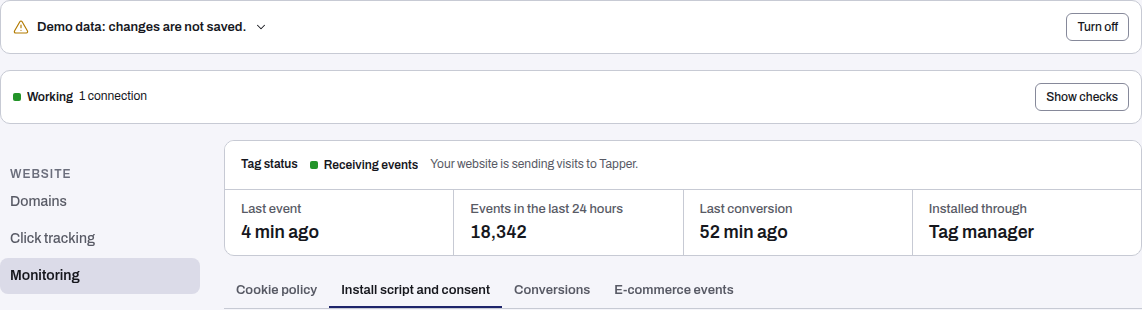
The website tag's status once visits arrive, with demo data
Next steps
- Install the conversion script on your confirmation page, or list your conversion pages instead.
- Choose your cookie policy and pass on your visitors' consent: see Consent and cookies.